
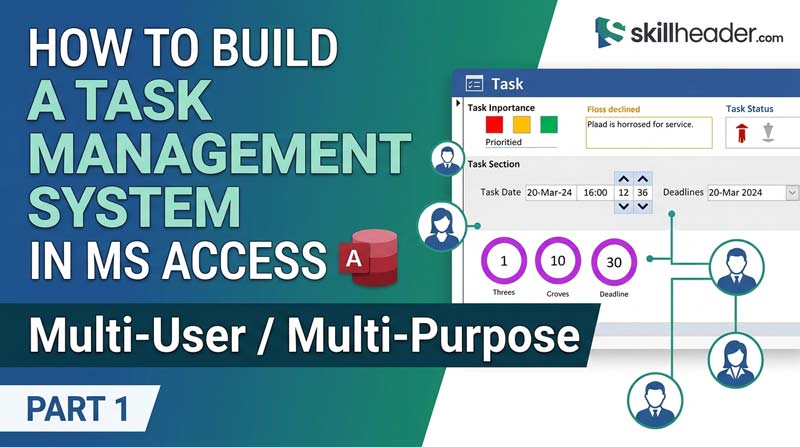
Want to build a real-world task management system in Microsoft Access that supports multiple users? In this step-by-step guide, we walk through everything covered in the video tutorial — from setting up the login system and database tables to building color-coded task forms with automatic duration calculation using VBA.
This is Part 1 of the Ultimate Task Management System project. If you want to follow along,
What You Will Build
By the end of this project, you will have a fully functional, multi-user task management system in Microsoft Access. It will include:
- A secure login form connected to a users table
- A main task dashboard with a professional header and footer
- Close and logout buttons with icons
- Buttons to create new tasks and group tasks
- A user list to assign tasks to specific people
- A tasks table to store all task data
- A new task form with color-coded priority levels (red, orange, green)
- Start time and end time selectors
- A circular duration calculator that auto-calculates task time
- VBA code to power all the logic
Step 1 — Set Up the Login System First
Before building the task management features, you need a working login system. This project builds on top of the Ultimate Login System series, also available on the Skill Header YouTube channel.
You can watch the complete login system playlist here: 👉 Ultimate Login System in MS Access — Full Playlist
That series covers:
- Designing the login form with no coding in Part 1
- Adding VBA code to make the form functional in Part 2
- Building a change password feature in Part 3
- Adding new user registration and forgot password in Part 4
- Handling duplicate usernames and advanced password security in Part 5
Once your login system is working with a proper users table and authentication logic, you are ready to start the task management project.
Step 2 — Create the Users Table
The users table is the backbone of the multi-user system. You should already have this from the login system project. It typically includes the following fields:
| Field Name | Data Type | Description |
|---|---|---|
| UserID | AutoNumber | Primary key, unique for each user |
| Username | Short Text | The login username |
| Password | Short Text | Stored password (hashed) |
| FullName | Short Text | Display name of the user |
| Role | Short Text | Admin or regular user |
| IsActive | Yes/No | Whether the user account is active |
This table is used later to populate the user dropdown in the task assignment form.
Step 3 — Create the Tasks Table
Now create a new table called tblTasks. This table will store every task in the system. Here are the fields to set up:
| Field Name | Data Type | Description |
|---|---|---|
| TaskID | AutoNumber | Primary key |
| TaskTitle | Short Text | Short name or title of the task |
| TaskDetails | Long Text | Full description of the task |
| AssignedTo | Number | Foreign key linked to UserID |
| CreatedBy | Number | The user who created the task |
| Priority | Short Text | Urgent, Important, or Regular |
| StartTime | Date/Time | When the task starts |
| EndTime | Date/Time | When the task ends |
| Duration | Short Text | Calculated duration (auto-filled by VBA) |
| TaskGroup | Short Text | Group category for the task |
| DateCreated | Date/Time | Timestamp when task was added |
| Status | Short Text | Pending, In Progress, or Completed |
To create this table, go to Create > Table Design in Access, then add each field with the correct data type.
Set TaskID as the primary key by right-clicking the field and selecting Primary Key.
Step 4 — Design the Main Task Dashboard Form
This is the central screen users see after logging in. It contains the navigation buttons, user list, and task list.
Create the Form
Go to Create > Form Design. You will be working in Design View.
Add a Header Section
In the Form Header, add:
- A label with the system name (e.g., “Task Management System”)
- A logo or icon image if you have one
- A horizontal line for visual separation
Add a Footer Section
In the Form Footer, add:
- A label showing copyright or system version
- Any status messages
To show the header and footer, right-click anywhere on the form canvas and select Form Header/Footer.
Add the Close Button
Add a command button to the form header or top-right area. Set its properties like this:
- Name: btnClose
- Caption: Leave blank
- Picture: Choose a close/X icon from Access built-in icons or import a custom one
Then add the following VBA code to its On Click event:
vba
Private Sub btnClose_Click()
    DoCmd.Close
End Sub
Add the Logout Button
Next to the Close button, add another command button:
- Name: btnLogout
- Caption: Leave blank
- Picture: Choose a logout/door icon
VBA code for logout:
vba
Private Sub btnLogout_Click()
    DoCmd.Close acForm, Me.Name
    DoCmd.OpenForm "frmLogin"
End Sub
This closes the current form and takes the user back to the login screen.
Step 5 — Add the New Task and Group Task Buttons
In the main body of the form, add two command buttons side by side.
New Task Button
- Name: btnNewTask
- Caption: + New Task
VBA code:
vba
Private Sub btnNewTask_Click()
    DoCmd.OpenForm "frmAddTask", , , , acFormAdd
End Sub
Group Task Button
- Name: btnGroupTask
- Caption: Group Tasks
This button can open a filtered view of tasks grouped by category or team. For now, you can set it to open the same task form with a filter:
vba
Private Sub btnGroupTask_Click()
    DoCmd.OpenForm "frmAddTask", , , , acFormAdd
    ' You can pass a filter or open a separate group task form later
End Sub
Step 6 — Add the User List for Task Assignment
To allow tasks to be assigned to specific users, you need a list box that shows all active users from the users table.
Add a List Box
Insert a List Box control on the form.
Set these properties:
- Name: lstUsers
- Row Source Type: Table/Query
- Row Source:
SELECT UserID, FullName FROM tblUsers WHERE IsActive = True ORDER BY FullName; - Bound Column: 1
- Column Count: 2
- Column Widths: 0cm; 4cm (hides the UserID, shows only the name)
When a user selects a name from this list, the selected UserID is used to filter the task list below.
Add the following VBA code to the After Update event of the list box:
vba
Private Sub lstUsers_AfterUpdate()
    Dim strFilter As String
    If Not IsNull(Me.lstUsers) Then
        strFilter = "AssignedTo = " & Me.lstUsers
        Me.subTasks.Form.Filter = strFilter
        Me.subTasks.Form.FilterOn = True
    Else
        Me.subTasks.Form.FilterOn = False
    End If
End Sub
This filters the task subform to only show tasks assigned to the selected user.
Step 7 — Add the Tasks Subform
Below the user list and buttons, add a Subform control to display the tasks table.
Set the subform properties:
- Source Object: Create a new form based on tblTasks
- Name: subTasks
- Link Master Fields: (leave blank if filtering via VBA)
- Link Child Fields: (leave blank)
Set the subform view to Datasheet or Continuous Forms so multiple task records show at once.
Step 8 — Build the Add Task Form (frmAddTask)
This is where users enter new task details. Create a new form in Design View based on tblTasks.
Form Layout
Design the form with these controls:
- Task Title — Text box bound to
TaskTitle - Task Details — Text box bound to
TaskDetails - Assigned To — Combo box bound to
AssignedTo, pulling fromtblUsers - Priority — Combo box or option group with values: Urgent, Important, Regular
- Task Group — Text box or combo box bound to
TaskGroup - Start Time — bound to
StartTime - End Time — bound to
EndTime - Duration — Unbound text box (calculated by VBA, not directly editable)
- Status — Combo box with values: Pending, In Progress, Completed
Step 9 — Add Color Coding Based on Task Priority
This is one of the most visual features of the system. The task form background or a colored panel changes color based on the selected priority level.
Color Logic
🟢
Regular Task
Normal, non-urgent task
🟠
Important Task
High priority but not emergency
🔴
Urgent Task
Must be done immediately
VBA Code for Color Change
Add this code to the After Update event of the Priority combo box (named cboPriority):
vba
Private Sub cboPriority_AfterUpdate()
    Call UpdatePriorityColor
End Sub

Private Sub UpdatePriorityColor()
    Select Case Me.cboPriority.Value
        Case "Urgent"
            Me.Section(acDetail).BackColor = RGB(255, 80, 80)   ' Red
            Me.lblPriorityIndicator.BackColor = RGB(255, 0, 0)
        Case "Important"
            Me.Section(acDetail).BackColor = RGB(255, 165, 0)   ' Orange
            Me.lblPriorityIndicator.BackColor = RGB(255, 140, 0)
        Case "Regular"
            Me.Section(acDetail).BackColor = RGB(144, 238, 144) ' Green
            Me.lblPriorityIndicator.BackColor = RGB(0, 200, 0)
        Case Else
            Me.Section(acDetail).BackColor = RGB(245, 245, 245) ' Default light grey
    End Select
End Sub
You can also call UpdatePriorityColor in the Form_Load event so the color appears correctly when editing an existing task:
vba
Private Sub Form_Load()
    Call UpdatePriorityColor
End Sub
Step 10 — Add Start Time and End Time Selectors
For the StartTime and EndTime fields, you can use bound text boxes with the Input Mask property set to Short Time format, or use combo boxes for hour and minute selection.
The simplest approach is to format the text boxes:
- Format: Short Time (hh:nn AM/PM) or 24-hour format (hh:nn)
- Input Mask:
99:99;0;_
Step 11 — Add the Circle Duration Calculator
This is the most unique feature in Part 1 — a visual circular indicator that shows the duration of a task based on the start and end time.
Calculate Duration with VBA
First, add an unbound text box named txtDuration to the form. Then add this VBA code to the After Update events of both txtStartTime and txtEndTime:
vba
Private Sub txtStartTime_AfterUpdate()
    Call CalculateDuration
End Sub

Private Sub txtEndTime_AfterUpdate()
    Call CalculateDuration
End Sub

Private Sub CalculateDuration()
    If Not IsNull(Me.txtStartTime) And Not IsNull(Me.txtEndTime) Then
        Dim dblHours As Double
        Dim intHours As Integer
        Dim intMinutes As Integer
        Dim strDuration As String

        dblHours = (Me.txtEndTime - Me.txtStartTime) * 24

        If dblHours < 0 Then
            MsgBox "End time cannot be before start time.", vbExclamation, "Time Error"
            Me.txtEndTime = Null
            Me.txtDuration = ""
            Exit Sub
        End If

        intHours = Int(dblHours)
        intMinutes = (dblHours - intHours) * 60

        strDuration = intHours & "h " & intMinutes & "m"
        Me.txtDuration = strDuration
        Me.txtDurationHidden = dblHours  ' Save raw value to table field if needed
    Else
        Me.txtDuration = ""
    End If
End Sub
Draw the Circle Indicator
To create a circular visual indicator, add an Unbound Object Frame or use the Line and Rectangle tools in Design View to simulate a circle shape. In Access, true circles can be drawn using the Ellipse drawing tool available in the Controls toolbar.
Set the ellipse’s Back Color to change dynamically based on duration:
vba
' Inside CalculateDuration, after setting strDuration
If dblHours <= 1 Then
    Me.shpDurationCircle.BackColor = RGB(0, 200, 0)    ' Green = short task
ElseIf dblHours <= 4 Then
    Me.shpDurationCircle.BackColor = RGB(255, 165, 0)  ' Orange = medium task
Else
    Me.shpDurationCircle.BackColor = RGB(255, 80, 80)  ' Red = long task
End If
Note: In Access, shape controls have a fixed size in Design View. You can adjust the size and position properties dynamically using VBA if needed. The circle acts as a visual badge showing how long the task will take at a glance.
Step 12 — Add the Save and Cancel Buttons
At the bottom of frmAddTask, add two buttons.
Save Button
vba
Private Sub btnSave_Click()
    If IsNull(Me.txtTaskTitle) Or Me.txtTaskTitle = "" Then
        MsgBox "Please enter a task title.", vbExclamation, "Missing Information"
        Me.txtTaskTitle.SetFocus
        Exit Sub
    End If

    If IsNull(Me.cboPriority) Then
        MsgBox "Please select a priority level.", vbExclamation, "Missing Information"
        Me.cboPriority.SetFocus
        Exit Sub
    End If

    ' Set creation date automatically
    Me.txtDateCreated = Now()

    DoCmd.RunCommand acCmdSaveRecord
    MsgBox "Task saved successfully!", vbInformation, "Saved"
    DoCmd.Close
End Sub
Cancel Button
vba
Private Sub btnCancel_Click()
    DoCmd.Close acForm, Me.Name, acSaveNo
End Sub
Summary of What Part 1 Covers
Here is a quick recap of everything built in Part 1:
- Login system using the Ultimate Login System project as the foundation
- Users table with full name and role fields
- Tasks table with priority, timing, and assignment fields
- Main dashboard form with header, footer, close button, and logout button
- New Task and Group Task action buttons
- User list box to filter tasks by person
- Task subform showing current task records
- Add Task form (frmAddTask) with all input fields
- Color-coded form backgrounds — red for urgent, orange for important, green for regular
- Start time and end time selectors with VBA validation
- Circle-style duration calculator with color feedback
- Save and Cancel buttons with basic data validation
What’s Coming in Part 2
In Part 2 of this series, we will complete the admin dashboard with task approval features, user management controls, and progress tracking. Stay tuned on the Skill Header YouTube channel.
Watch the Full Video Tutorial
All of the steps above are demonstrated live in the video. Watching it alongside this guide will help you understand every detail more clearly.
📺 Watch Part 1 here: Task Management System in Access | Multi User Multi Purpose Part 1
📋 Ultimate Login System Playlist: Watch the full series
📢 Subscribe to Skill Header on YouTube for more MS Access tutorials, real-world database projects, and step-by-step VBA coding guides.
Frequently Asked Questions
Can this task management system work on a network with multiple users at the same time? Yes. Microsoft Access supports multi-user environments when the database is split into a front-end (forms and queries) and a back-end (tables). Each user runs their own front-end file connected to a shared back-end on a network drive.
Do I need to know VBA before starting this project? No. The video explains every line of VBA code as it is written. If you are completely new to VBA, watching the Ultimate Login System series first will give you a solid foundation.
What version of Microsoft Access do I need? This project works with Microsoft Access 2016, 2019, 2021, and the Microsoft 365 version of Access. The core features used are compatible with all modern versions.
Can I use this project as a base for a client or business system? Yes. The system is designed with real-world use in mind. You can extend it with reporting, email notifications, or export features once the core system is working.
Tutorial by Skill Header — The Ultimate IT Skills & Trending Tech Platform. Empowering students, job holders, and businesses to master in-demand digital skills.