
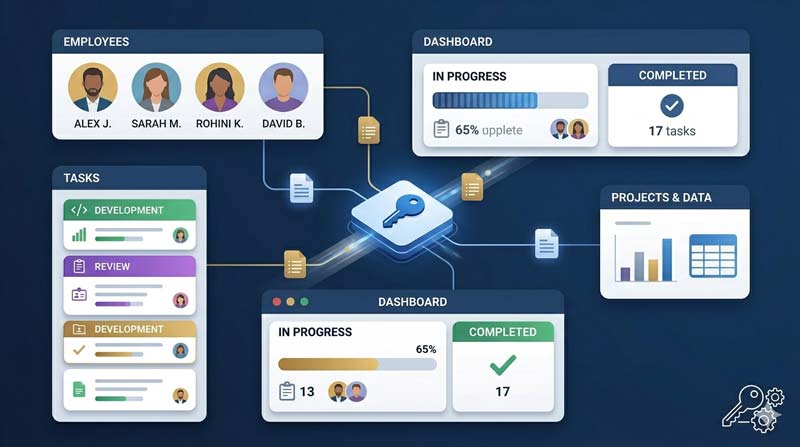
This guide shows you how to build a multi-user task management system in Microsoft Access with VBA — the kind of system that replaces scattered to-do lists, group chat threads, and missed deadlines with a structured, shared, and fully accountable workflow that a real team can use from day one.
In most small businesses, task management lives in WhatsApp messages, sticky notes, shared spreadsheets, or someone’s memory. None of those work well at scale. Deadlines get missed not because people are not trying, but because the visibility simply is not there. You cannot manage what you cannot see.
This three-part series by SkillHeader builds a solution to that exact problem — a fully working multi-user task management system built in Microsoft Access using VBA. It is not a prototype or a simplified demo. It is a real system with a login screen, an admin dashboard, a user dashboard, task creation and approval forms, time-based progress tracking, and grouped task views. If your team runs on Windows and already has MS Access installed, this is something you can deploy and actually use — for free, with no subscription and no server required.
Why Every Small Business Needs a Proper Task Management System
Task management is one of those things businesses delay building until the cost of not having it becomes obvious — usually after a missed deadline damages a client relationship, or a project stalls because no one knew it was their responsibility to move it forward.
The problem is not that people are disorganized. It is that without a structured system, accountability is invisible. An admin cannot see at a glance which tasks are overdue, which are in progress, and which have not been touched. A team member has no clear view of what is due today versus what can wait. And when things go wrong, no one has a record of what was assigned, when, and to whom.
A task without a deadline is just a wish. A task without an owner is just a hope. This system makes sure every task has both — and that everyone can see the progress in real time.
SKILLHEADER — Task Management System
A structured task management system changes all of that. It creates accountability by design — every task has an owner, a due date, a priority, and a status. Progress is visible to anyone with access. Admins can approve, reject, or reassign. Users know exactly what is expected of them and can see how they are tracking against it.
The fact that this series builds it in MS Access is significant. Most task management tools either require a paid subscription, internet access, or a dedicated server. This system runs on a desktop, works across a local network, supports multiple users simultaneously, and costs nothing beyond the software your business already has.
A Complete Multi-User Task Management System With Two Distinct Dashboards
The finished system gives two different types of users two different experiences — both powered by the same underlying database. Admins get a full management view. Regular users get a focused personal workspace. Here is an overview of what each part of the system includes.
🔐
Secure Login System
A role-based login form that identifies whether the logged-in user is an Admin or a regular User — and opens the correct dashboard automatically.
🗂️
Task Tables & Relationships
Properly structured database tables for users, tasks, task types, and time intervals — all linked with relational keys for accurate data flow.
➕
New Task Entry Form
A clean form for creating new tasks with fields for task name, type, assigned user, priority, deadline, and time interval settings.
📊
Admin Dashboard
A central management view showing all open tasks, assigned users, time remaining, and status — with approve, reject, edit, and delete controls per task.
⏱️
Live Progress Bar
Each task displays a visual progress bar calculated from the time elapsed versus total time allowed — so the admin can see at a glance which tasks are on track and which are at risk.
✅
Approval / Rejection Mechanism
Admins can approve or reject task submissions directly from the dashboard — giving the team a formal review step before tasks are marked complete.
👤
User Dashboard
A personal task view for each logged-in user showing only their own tasks — open, in progress, and closed — with status tracking and filter options.
📂
Open & Closed Task Views
Grouped task views using option buttons — users can toggle between their open tasks and their completed tasks in a clean, organized interface.
🚪
Logout & Exit Controls
Proper session management — a Logout button returns the user to the login screen, and an Exit button closes the application safely.
What Each of the 3 Videos Covers — Step by Step
The series runs across 90 minutes of focused, step-by-step instruction. Each video has a clear job — Part 1 builds the structure, Part 2 activates the admin functions, and Part 3 completes the user-facing experience. Here is the full breakdown.
1
PART
Admin and User Form with Dashboard
⏱ 31 Minutes 39 Seconds
- Login form setup with Admin account and role detection
- Designing the User table and Task table with correct field types
- Building the table relationships that link users to their tasks
- Creating the New Task entry form with task types and time intervals
- Designing the Admin Dashboard layout and subform structure
2
PART
Admin Dashboard with Approval or Rejection
⏱ 31 minutes 47 seconds
- Writing the Days, Hours, and Minutes expression for time remaining display
- Coding the Add New Task Submit button with full VBA validation logic
- Building the Open Tasks query that feeds the admin subform
- Calculating the percentage factor for the visual task time progress bar
- Building the Task Edit and Task Deletion form with confirmation dialogs
- Implementing the Admin approval and rejection mechanism
3
PART
Tasks Options Grouping & Calculated Fields
⏱ 26 minutes 54 seconds
- Adding the Logout and Exit buttons with proper session handling
- Building the User Dashboard — filtered to show only the logged-in user’s tasks
- Creating option group buttons to toggle between Open and Closed task views
- Completing the Admin Dashboard header section with summary metrics
- Building the Tasks Group View forms for organized category-based display
The MS Access Tables and Relationships Behind the System
The system is built on a clean, normalized database structure. Two main tables — Users and Tasks — form the core, with task types and time interval settings handled through supporting fields or lookup values. The relationship between Users and Tasks is what makes the multi-user behavior possible: each task record stores the assigned user’s ID, so the system always knows whose task it is and can filter accordingly.
| Table | Key Fields | Purpose |
|---|---|---|
| User Table | User ID, Username, Password, Role | Stores all user credentials and determines whether each user is an Admin or a regular User |
| Task Table | Task ID, Task Name, Task Type, Assigned User, Start Date, Due Date, Time Interval, Status | The central table — stores every task record with its assignment, timing, and current status |
| Task Status | Open, In Progress, Pending Approval, Closed | Status values that control which view a task appears in and what actions are available for it |
| Task Type | Type Name, Category | Categorizes tasks so they can be grouped and filtered by type in both the admin and user views |
| Time Interval | Interval Setting, Duration | Defines the total allowed time for a task — used to calculate the live progress percentage |
The relationship between the User table and the Task table is a one-to-many link: one user can have many tasks. This is the foundation that makes the user-specific dashboard work — a simple query filters the task subform by the logged-in user’s ID, so each person only sees their own work. The Admin, by contrast, runs an unfiltered view that shows all tasks across all users.
What This System Actually Does for a Business
01
Full visibility for admins — zero guesswork
The admin dashboard shows every open task in the system: who owns it, how much time is left, and what the current status is. There is no need to ask for updates — the system displays them automatically. The progress bar makes it immediately clear which tasks are on track and which need attention.
02
Personal accountability for every team member
Each user logs in and sees only their own tasks. They cannot see other people’s work, which keeps the interface clean and focused. They can check what is due, what is still open, and what they have completed — all from their own dedicated dashboard.
03
Built-in approval workflow
Every task on the admin dashboard shows a progress bar calculated from the time elapsed against the total allowed time. This is not a manual status update — it recalculates automatically. An admin looking at the dashboard immediately knows if a task is 20% done with 80% of time remaining, or 80% done with 20% of time left.
04
Full visibility for admins — zero guesswork
The admin dashboard shows every open task in the system: who owns it, how much time is left, and what the current status is. There is no need to ask for updates — the system displays them automatically. The progress bar makes it immediately clear which tasks are on track and which need attention.
05
Multi-user without complexity
Multiple team members can use the system simultaneously through a shared network folder — a standard MS Access multi-user setup. No server required, no IT department needed, no cloud subscription. The same database file handles everyone, with each user’s view filtered to their own data.
06
Open and closed task history
Completed tasks do not vanish. The user dashboard’s option group lets users switch between their open tasks and their closed task history. This gives the team a running record of what has been completed and when — useful for performance reviews, project retrospectives, and workload analysis.
07
Fully customizable for any business or industry
Task types are configurable, time intervals are adjustable, and the form layouts can be modified to match any workflow. Whether you are managing a construction project, a retail team’s daily checklists, or a service business’s client deliverables — the structure adapts because you own the source code.
08
A foundation you can build on
This project is also featured as a standalone module inside SkillHeader’s Master Business Accounting mega series — which means the patterns built here (task tables, user-filtered views, approval workflows) plug directly into a larger system if you ever want to expand. Learning the task system is also learning a piece of something much bigger.
What You Learn to Build in Microsoft Access and VBA
Beyond the finished system itself, the series teaches several important MS Access and VBA techniques that apply to almost any project you build after this one.
Role-Based Form Routing
After login, the VBA code checks the user’s role and opens either the Admin Dashboard or the User Dashboard. This is a pattern you can reuse in any multi-user system you build.
Calculated Time Expressions
The Days, Hours, and Minutes expression that powers the time remaining display is a reusable VBA technique for any form that needs to show elapsed or remaining time.
Progress Bar from Percentage
The progress bar is built by calculating a percentage (time elapsed / total time) and using that value to control a visual element’s width — a clean technique applicable to any metric you want to visualize.
Option Group for View Switching
The Open/Closed task toggle uses an MS Access option group control wired to a VBA event that refilters the subform. This is one of the most useful UI patterns in Access development.
User-Filtered Subforms
Passing the logged-in user’s ID as a filter criteria to a subform is the technique that makes the personal user dashboard work. It is simple, efficient, and fundamental to any multi-user application.
Safe Edit and Delete Flows
The task edit and deletion forms include confirmation dialogs and VBA validation before any data is changed or removed — protecting against accidental loss and reinforcing good database hygiene.
Connects to Larger Projects
The Task Management System built in this series is also used as an integrated module inside SkillHeader’s Master Business Accounting system. If you follow that series, you will recognize the same patterns, same form structure, and same VBA approach — because both are built on the same foundation. Learning this project well makes the accounting series easier to follow, and vice versa.
Who Will Benefit Most From Building This MS Access Task Management System
🏢
Small Business Owners & Team Managers
If your team manages tasks through email chains, group chats, or shared spreadsheets, this system gives you a proper tool that creates accountability, tracks progress, and keeps everyone aligned — without paying for a project management subscription.
💻
MS Access Developers & Learners
This is a practical, complete project that teaches role-based form routing, user-filtered subforms, calculated time expressions, and progress visualization — skills that carry over to any MS Access application you build. A genuinely useful addition to your portfolio.
🎓
Students & Database Design Beginners
The series introduces multi-user database design in a practical context. You see why tables need relationships, how queries filter data per user, and how VBA connects the interface to the data — all explained through a real-world system you can actually understand and use.
Build a Real Task Management System in MS Access — Free, Step by Step
Three videos. Ninety minutes. One system that replaces the chaos of informal task tracking with something structured, visible, and actually usable by a real team.
What makes this series worth your time is not just the finished product — it is the way it is taught. Every form has a purpose. Every piece of VBA code is explained before it is written. The database design decisions are justified, not just demonstrated. You walk away understanding not only how to build this system but why it is built the way it is.
If you have ever watched a team member miss a deadline because they did not realize it was coming, or spent time chasing status updates that a proper system would have surfaced automatically, this project solves the right problem. It is not a complicated build, but it is a meaningful one — and it is exactly the kind of system a small business can deploy on Monday morning and actually use on Tuesday.
Download the practice files at skillheader.com
Watch the Full Series — Free on YouTube
Three focused videos. One complete multi-user task management system built in Microsoft Access with VBA. Step by step, from empty database to working application.
3 videos · ~90 minutes · Microsoft Access & VBA · SkillHeader