
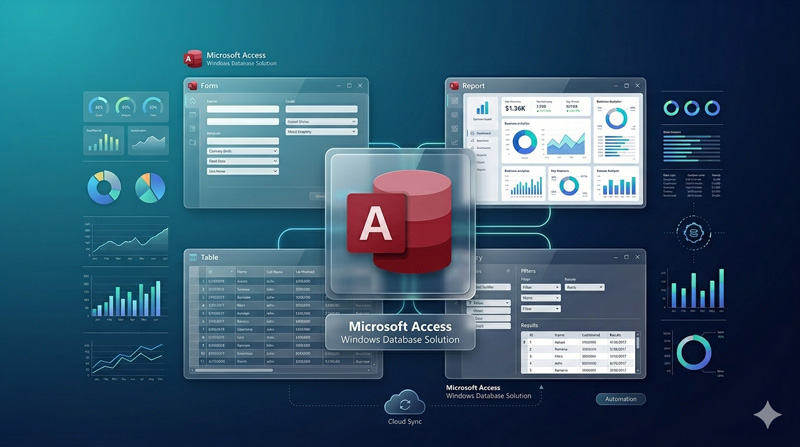
Microsoft Access has been powering real business databases since 1992 — and in 2026, it is still one of the most practical, cost-effective tools available for building database applications on Windows. This complete guide covers everything: what Access is, how it differs from Excel, every core module explained simply, real-world uses across industries, its full version history, and a set of powerful features most users never discover. If you are starting with Access or want to understand it deeply, this is where to begin.
What is Microsoft Access?
Microsoft Access is a relational database management system (RDBMS) built by Microsoft and included in the Microsoft 365 Office suite. Unlike a simple spreadsheet, it is designed specifically to store, organize, query, and manage structured data across related tables — much like a scaled-down version of enterprise databases such as SQL Server or Oracle, but without the complexity or cost.
It was first introduced on November 13, 1992 at the COMDEX convention in Las Vegas — presented by Bill Gates himself. The goal was simple: bring the power of relational databases to everyday Windows users who did not have the technical background to work with server-based systems. It succeeded immediately and became one of the most widely used database tools in history.
Today in 2026, Access is still actively maintained by Microsoft, included in Office LTSC 2024, and running in tens of thousands of organizations worldwide — from small family businesses to large enterprises. The software is not declining; it continues to receive new features on a regular roadmap.
What makes Access special is the combination it offers: a proper relational database engine (Microsoft’s Jet/ACE engine), a graphical user interface that non-programmers can use, VBA (Visual Basic for Applications) for automation and programming, and deep integration with the rest of Microsoft Office. You can build a complete business application — data entry forms, reports, automated emails, user login systems — without being a professional developer.
Access vs Excel — The Real Structural Difference
This is one of the most common questions beginners ask, and it is worth answering clearly because the two tools are fundamentally different in purpose and structure — even though both are part of Microsoft Office.
Excel is a spreadsheet. Data lives in cells on a grid. You can write formulas, create charts, and do calculations — but every piece of data is essentially independent. Excel is perfect for financial models, one-off calculations, and small lists.
Access is a relational database. Data is stored in structured tables with defined field types, linked to other tables through relationships. Multiple users can interact with the same data simultaneously through custom forms, without ever seeing the raw tables. This is a completely different philosophy of working with data.
📊 Microsoft Excel
- Grid-based cells and worksheets
- Best for formulas and calculations
- One person at a time (mostly)
- Flat, non-relational data
- Easy to learn quickly
- Limited data entry control
- No built-in form interface
- Struggles with large, related datasets
🗃️ Microsoft Access
- Tables, forms, queries, reports
- Best for data storage and retrieval
- Multi-user, simultaneous access
- Relational tables with relationships
- Steeper learning curve
- Strict validation and data types
- Custom form-based interface
- Built for relational, structured data
Here is the practical takeaway: if you are tracking 200 expense receipts in a single list, Excel works fine. But if you are managing customers, their orders, the products in each order, and the suppliers of those products — all linked together — that is exactly what Access was built for. The relational model prevents data duplication, keeps your records clean, and makes reporting far more powerful.
The 7 Core Modules of Microsoft Access — Explained Simply
When you open a Microsoft Access database, you will see seven types of objects listed in the navigation pane. Each one plays a specific role. Together, they form a complete system for managing data. Here is what each one does.
📋
Tables
Where all your data is stored. Structured rows and columns with specific data types for each field.
Foundation
🔗
Relationships
Links between tables that prevent duplicate data and enforce data integrity across the database.
Structure
🔍
Queries
Ask questions of your data. Filter, sort, calculate, and combine data from multiple tables.
Analysis
📝
Forms
Custom screens for data entry and viewing. Users interact here instead of directly in tables.
Interface
📄
Reports
Formatted, printable output of your data — summaries, invoices, lists — exportable to PDF.
Output
⚡
Macros
No-code task automation. Open forms, run queries, show messages — all with point-and-click setup.
Automation
🧩
Modules / VBA
Write Visual Basic code for advanced logic, complex automation, and custom functions
Programming
📋 Tables — Where Your Data Lives
Tables are the backbone of every Access database. Every piece of data you store — a customer name, an order date, a product price — lives in a table. Each table represents one specific type of information: you might have a Customers table, an Orders table, and a Products table, each storing only what belongs to it.
Tables have fields (columns) and records (rows). Every field has a specific data type — text, number, currency, date/time, yes/no, attachment, or hyperlink. Defining these types carefully is what makes Access more organized and precise than a spreadsheet. You cannot accidentally type a name into a currency field; Access simply will not allow it.
Each table also has a primary key — usually an auto-generated ID number — that uniquely identifies every record. This key is used to build relationships between tables, which is what takes a collection of tables and turns them into a proper relational database.
🔗 Relationships — The Power of Relational Data
Relationships are what separate a real database from a collection of spreadsheets. A relationship is a link between two tables, connected through a common field — typically the primary key of one table and a matching field in another.
There are three types of relationships in Access:
- One-to-one — one record in Table A corresponds to exactly one record in Table B
- One-to-many (most common) — one customer can have many orders; one category can contain many products
- Many-to-many — many products can appear in many orders; typically handled using a junction table
Once you have defined relationships, Access can enforce referential integrity — meaning it will not let you create an order for a customer who does not exist, or delete a customer who still has active orders. This protects the accuracy of your entire database automatically.
🔍 Queries — Ask Questions, Get Answers
A query is how you extract and work with information from your database. Instead of scrolling through a table of thousands of records, you write a query that says exactly what you want — and Access returns only that data, formatted the way you need it.
You can build queries without writing any code using the Query Design view — a visual drag-and-drop interface. Or, for more control, you can write SQL directly. Common query types include:
- Select queries — retrieve specific records matching your criteria
- Parameter queries — ask the user for input (e.g., “Enter a date range”) and filter results accordingly
- Action queries — update records, delete records, or append data in bulk
- Aggregate queries — calculate totals, averages, counts, and min/max values across groups of records
- Crosstab queries — display data in a pivot-table-style format for side-by-side comparison
📝 Forms — The User’s Window Into Your Database
Forms are the interface that real users interact with. Instead of opening a raw table (which can expose all records and fields), users work through a designed form that shows exactly what they need and nothing more. A good form can include dropdown menus, date pickers, search boxes, buttons, calculated fields, and conditional formatting.
Access supports several form types:
- Single-record forms — show one record at a time with all its fields neatly laid out
- Continuous forms — show multiple records in a scrollable list, each with the same layout
- Datasheet forms — similar to a table view but with form-level validation and controls
- Subforms — embed a related form inside another (e.g., show all orders for a customer on the customer form)
📄 Reports — Professional Output From Your Data
Reports take your data and turn it into formatted, printable documents. You can design reports to look like professional invoices, employee rosters, inventory summaries, sales breakdowns, or any formatted document you need. Reports can include grouping, sorting, subtotals, grand totals, logos, and conditional formatting.
Reports can be printed directly, or exported to a range of formats including PDF, Excel, HTML, and XML — making them useful for sharing with people who do not have Access installed.
⚡ Macros — Automation Without Code
Macros allow you to automate common tasks without writing any VBA code. You build a macro by choosing from a list of pre-built actions: open a form, run a query, show a message box, go to a specific record, close a window. You can chain these actions together and set conditions so certain steps only run if specific criteria are met.
Macros are ideal for beginners who want to add functionality to their database — like a button that saves a record and opens the next form — without needing to learn programming. For more complex logic, Macros can be converted to VBA with a single click.
🧩 Modules and VBA — Full Programming Power
Modules are where you write VBA code. VBA (Visual Basic for Applications) is a full, event-driven programming language built into all Microsoft Office applications. In Access, VBA code can be attached to form events (like clicking a button, opening a form, or changing a field value) or written as standalone functions and procedures in module files.
With VBA you can do things no macro can handle: complex conditional logic, loops, calculations across records, interaction with other Office applications (like sending emails via Outlook or creating Excel reports), connecting to external databases, and building complete multi-user application systems.
' Example: Send an automated email via Outlook
Sub SendLowStockAlert(ProductName As String, StockQty As Integer)
Dim objOutlook As Object
Dim objMail As Object
Set objOutlook = CreateObject("Outlook.Application")
Set objMail = objOutlook.CreateItem(0)
objMail.To = "manager@yourcompany.com"
objMail.Subject = "Low Stock Alert: " & ProductName objMail.Body = "Stock for " & ProductName & " has dropped to " & StockQty & " units."
objMail.Send
End Sub
Where MS Access is Used — Business and Industry Applications
Access is not a toy or a learning tool. It runs real operations in real organizations every day. Here are the most common use cases across businesses and industries.
📋
Tables
Where all your data is stored. Structured rows and columns with specific data types for each field.
🔗
Relationships
Links between tables that prevent duplicate data and enforce data integrity across the database.
🔍
Queries
Ask questions of your data. Filter, sort, calculate, and combine data from multiple tables.
📋
Tables
Where all your data is stored. Structured rows and columns with specific data types for each field.
📅
Project Management
Task tracking, milestones, resource allocation, progress reports
🎪
Event Management
Guest lists, RSVPs, venue logistics, attendance tracking
🏥
Healthcare
Patient records, appointment scheduling, prescription tracking
🏫
Education
Student records, grade tracking, course management, fee collection
What all of these use cases share is the need for structured, relational data with multiple users, custom forms, and regular reporting. Access handles every one of them out of the box, without needing to pay for a custom software subscription or hire a developer to build something from scratch. For small to medium-sized organizations, it often does the job better and cheaper than anything else available.
MS Access Version History — From 1992 to Today
Understanding the journey of Access helps you appreciate why it has survived for over 30 years while many other database tools have come and gone. Here is the complete timeline.
1992 — Access 1.0
First release. Launched by Bill Gates at COMDEX. Immediate commercial success — sold out within weeks. Introduced the world to graphical relational databases on Windows.
1993 — Access 1.1 & Access 2.0
Rapid follow-up versions with stability improvements and expanded features. Early VBA support introduced.
1995 — Access 7.0 (Access 95)
First version bundled with Microsoft Office 95. Brought Access to a massive new audience of Office users.
1997 — Access 97
Widely considered the definitive early version. Introduced improved VBA, better form controls, and the foundation for the next decade of development.
2000–2003 — Access 2000, XP, 2003
Progressive improvements to stability, web integration via Data Access Pages, and deeper SQL Server connectivity.
2007 — Access 2007
Major overhaul. Introduced the .ACCDB file format (replacing .MDB), the Ribbon interface, multi-value fields, attachment fields, and improved SharePoint integration.
2010–2013 — Access 2010 & 2013
Added Access Web Apps — browser-based databases hosted on SharePoint. These were later discontinued in 2017, which caused widespread (incorrect) rumours that Access itself was being retired.
2016–2019 — Access 2016 & 2019
Refinements to the interface, improved large-number field support, better dBASE support, and continued performance improvements.
2021 — Access 2021
Part of Office LTSC 2021. Improved Add Tables pane, tab management enhancements, hex colour support in form and report design. Confirmed support alongside Microsoft 365.
2024–2026 — Access in Office LTSC 2024 & Microsoft 365
Active roadmap including rounded corners for controls, zooming improvements for continuous and popup forms, linked field property improvements, and more. Support confirmed until October 2029 for LTSC 2024. Still part of most Microsoft 365 Business plans.
Advanced Features Most Users Never Discover
🔥 Secret Feature #1
One of the most important and underused features in Access is the ability to split your database into two separate files: a back-end and a front-end. Most beginners work with a single .accdb file for everything. Professionals split them — and for good reason.
The back-end file contains all the tables and raw data. It sits on a shared network drive and is never opened directly by users.
The front-end file contains the forms, queries, reports, macros, and VBA code — everything the user interacts with. It links to the back-end tables over the network using linked table connections. Each user has their own copy of the front-end on their computer.
The benefits of this architecture are significant:
- Data security — the raw data file stays on a controlled server; users cannot accidentally delete tables
- Easy updates — you can update the front-end (add a new form, fix a bug) and distribute a new version without touching the data
- Smaller front-end file — users get a fast, lightweight application file
- Easy backups — you only need to back up the back-end file, which contains all the data
- Multiple front-ends possible — different departments can have different interfaces connected to the same data
- Scales to network and server environments — the foundation for moving to SQL Server when needed
Using Access on a Local Network — Multi-User Without Any Server
🔥 Secret Feature #2
This surprises many people who assume you need a dedicated database server for multi-user access. You do not. With a split database and a basic shared network folder, multiple users can connect to the same Access back-end simultaneously — with no additional software, no server installation, and no extra cost.
Here is how it works in practice:
1
Place the back-end file (YourDB_be.accdb) in a shared folder on your local network drive. Everyone who needs access must have read/write permission to this folder.
2
Give each user a copy of the front-end file on their own computer. This is the file with forms, queries, and reports — linked to the back-end tables over the network.
3
When users open the front-end, Access automatically connects to the back-end over the network. Multiple users can enter and retrieve data at the same time.
4
Access uses record-level locking — two users editing the same record at the same time get a conflict warning, keeping data consistent.
SQL Server and MySQL Integration — Taking Access Online and Beyond
🔥 Secret Feature #3
This is where Access becomes genuinely powerful for growing businesses. When your data outgrows the limits of a file-based back-end, you do not have to rebuild your entire application. You can link Access to a SQL Server or MySQL database as the back-end — keeping all your forms, reports, and VBA logic intact — while moving the data to a proper database server.
This is called an Access Data Project (ADP) or, more commonly today, a linked table connection via ODBC.
Benefits of using SQL Server or MySQL as the back-end
| Capability | Access-only (.accdb) | Access + SQL/MySQL backend |
|---|---|---|
| Max simultaneous users | ~10–15 | Hundreds or more |
| Max database size | 2 GB | Effectively unlimited |
| Data encryption | Basic | Enterprise-grade |
| Remote / internet access | Not natively | Yes (via hosted SQL Server) |
| Automated backups | Manual | Built-in server tools |
| Performance at scale | Limited | Excellent |
| Keep existing Access forms & VBA | — | Yes, unchanged |
Using Access online — anywhere in the world
One question that comes up constantly is: can I use my Access database from a different location, not just in the office? The answer is yes — but it requires a cloud-hosted SQL Server back-end.
The setup works like this: your tables are stored on a hosted SQL Server (available from providers like Azure, AWS, or even a simple VPS), and your Access front-end connects to it via a secure ODBC connection over the internet. Users anywhere in the world open their local front-end file and it connects to the live server data in real time.
This is the professional solution many small and medium businesses use to run Access-based applications for remote teams — without paying for a full enterprise software subscription. The SQL Server hosting cost is typically very affordable for small databases.
Automation Superpowers — Emails, Scheduling, and Beyond
🔥 Secret Feature #4
This is where Access truly surprises people. With VBA, your database does not just store and display data — it can take action automatically, without any human intervention. Here are the most powerful automation capabilities built into Access.
📧 Automated emailing via Microsoft Outlook
Access integrates directly with Microsoft Outlook through VBA. This means your database can send emails automatically — triggered by data conditions, button clicks, or scheduled tasks. Real examples:
- Send a low-stock alert to your purchasing manager when inventory drops below a set threshold
- Email a PDF invoice to a customer automatically when an order is marked complete
- Send a daily summary report to management every morning at 9 AM
- Notify an employee when their task is assigned, updated, or overdue
- Send bulk emails to a filtered list of customers — personalized with their name and relevant data
⏰ Scheduled tasks and timed reminders
Access can run code at set intervals using the Timer event on forms. Combine this with your data — due dates, appointment times, stock levels — and you have a complete reminder and scheduling engine:
- Pop-up reminder when a client appointment is approaching
- Auto-run a cleanup query every night to archive old records
- Check for overdue tasks every hour and flag them on the dashboard
- Auto-refresh data on a dashboard form every 30 seconds for live monitoring
📁 Export and file automation
Access can export data to any format automatically — no manual steps required:
- Auto-generate and save a PDF report to a specific folder every Friday
- Export query results to an Excel file and email it as an attachment
- Import data from a CSV or Excel file placed in a watched folder
- Publish an HTML report to an internal web server for browser viewing
🔗 Integration with other Office apps
VBA gives Access the ability to control Word, Excel, Outlook, and even external applications. You can generate a Word document with mail-merge data from your Access tables, build an Excel pivot table from a query result, or copy data from a website directly into your database — all from a single button in your Access form.
Frequently Asked Questions
Is Microsoft Access still relevant in 2026?
Yes — and more than most people realize. Access is included in Microsoft 365, actively maintained with new features, and used by tens of thousands of organizations worldwide. It is not the right tool for every job, but for Windows-based internal database applications with small to medium datasets, it remains one of the best options available. The SkillHeader article Is MS Access Still Worth It in 2026? covers this in full detail.
Can multiple users use the same Access database at the same time?
Yes. With a split database on a shared network folder, up to about 10–15 users can work simultaneously. For larger teams, moving to a SQL Server back-end removes that limitation entirely.
Do I need to know coding to use Access?
No — not for basic use. Tables, queries, forms, and reports can all be built entirely through the visual interface without writing a single line of code. Macros allow simple automation without code. VBA becomes necessary when you need complex logic, advanced automation, or custom integrations with other applications.
What is the file size limit for an Access database?
A single .accdb file can hold up to 2 GB of data. For most small business databases, this is more than enough. If you need more, link to a SQL Server or MySQL back-end where storage is essentially unlimited.
Is Access included in Microsoft 365?
It depends on your plan. Access is included in Microsoft 365 Business Standard, Business Premium, Apps for Enterprise, and most Enterprise plans. It is not included in Microsoft 365 Basic or Personal/Family plans. Check your subscription for the Microsoft 365 Apps for business tier or higher.
Can I use Access from home or remotely?
Yes, with a cloud-hosted SQL Server or MySQL back-end. Your Access front-end connects to the server via ODBC over the internet. This allows fully remote access from any location with an internet connection, without giving up any of your existing Access forms or logic.
What is the difference between an ACCDB and an ACCDE file?
An .accdb is your editable development database containing all VBA source code and design views. An .accde is a compiled version where VBA code is locked, and forms and reports cannot be modified. ACCDE is for distributing to end users to protect your work.
References
Written by SkillHeader
Tutorials, projects, and practical guides for Microsoft Access and database development. Watch the full video series on YouTube @skillheader and explore more articles at skillheader.com.