
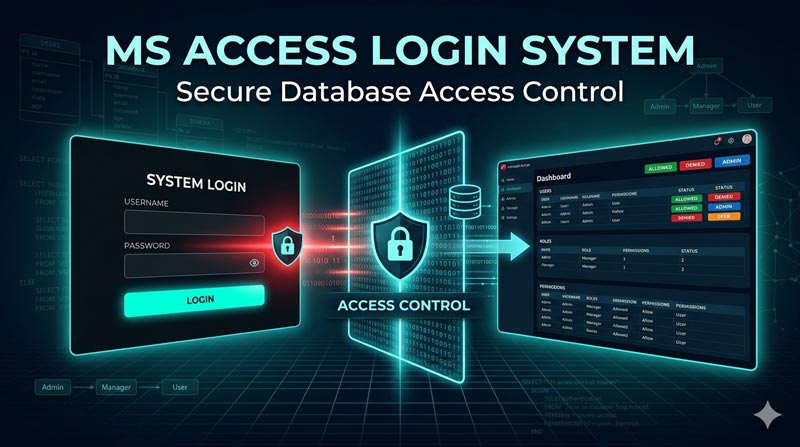
If you’ve ever built a database in Microsoft Access and shared it with other people in your team, you’ve probably run into a basic but important question: how do you make sure only the right people can get in — and that each person only sees what they’re supposed to see? If you are looking for a complete blueprint, our guide on Building an Ultimate Login System in Access | Secure Access Control for Your Database delivers exactly what you need to protect your front-end and back-end assets.
That’s exactly what this five-video playlist from SkillHeader tackles. Titled “Ultimate Login System in MS Access,” the series takes you from a blank database all the way to a fully secured, multi-user login system with password management, account recovery, and advanced password strength enforcement. It’s a project that most Access developers need sooner or later, and this playlist covers it more thoroughly than almost anything else available for free.
Here’s a full breakdown of the playlist, why a proper login system matters, and how the entire thing is structured from the ground up.
What Is This Playlist About?
The playlist is built around one complete project, broken into five parts (with a sixth introductory/overview video). Each part adds a new layer of functionality on top of what came before:
Part 1 covers designing the login form itself — laying out the visual elements, applying the password mask, setting up placeholder text with conditional formatting, and organizing all the buttons.
Part 2 is about making it work. You create the user table, wire up the login button with VBA, and build a basic dashboard form with a logout button so users have a full login/logout cycle.
Part 3 adds the Change Password feature, where users can update their own password after verifying their current credentials, with minimum character length enforcement built in.
Part 4 introduces both New User Registration and a Forgot Password system, using the last five digits of a user’s phone number as the account recovery method.
Part 5 — the most advanced part — upgrades the registration form with three professional-grade security features: duplicate username prevention, a password show/hide toggle, and a real-time password strength indicator that uses ASCII character analysis to rate passwords as Weak, Medium, or Strong.
Together, these five parts produce a login system that is genuinely production-ready for small and medium business databases.
Why Does a Login System Matter for Access Databases?
Microsoft Access databases are often used in shared environments — a small office where multiple employees use the same application on a networked computer. Without a login system, everyone opens the same database and sees everything. There’s no way to know who did what, no way to restrict sensitive areas to specific people, and no protection against someone accidentally (or intentionally) changing data they shouldn’t touch.
A login system changes all of that in a few concrete ways.
None of this requires a server, a web application, or expensive software. It all runs inside Microsoft Access — software that millions of businesses already have installed.
The Full Structure: How the System Is Built
01
Designing the Login Form
Begins with a blank Access database and builds the form from scratch in Design view. No coding, no prgramming knowledge required.
02
User Authentication
Build user table, login button functionality matching username and password combination with password verification and multi user setup
03
Change Password
Prevents someone from walking up to an unlocked screen and changing another person’s password. Enforces a minimum of 8 characters and requires
04
User Registration and Forgot Password
The New User Registration form collects a person’s basic information. The phone digits are a recovery code used in the forgot password flow.
05
Advanced Security
Duplicate username prevention. Password show/hide toggle adds a clickable eye icon next to each password field. Real-time password strength indicator is the most technically interesting part
Part 1 — Designing the Login Form
Everything starts with the visual design of the login form. The tutorial begins with a blank Access database and builds the form from scratch in Design view.
The form is split into two visual sections using rectangles: a narrower decorative panel on one side and the main login area on the other. The username and password fields are added with proper labels, icons (sourced from a free icon site), and a password mask applied to the password field so characters show as asterisks.
Placeholder text is added using conditional formatting and an expression that checks whether the field is empty — a small touch that makes the form look modern and professional without needing any extra code.
The form also includes hidden sections for Change Password fields (two new password textboxes and a confirm button) that only appear when the “Change Password” button is clicked. This keeps the interface clean by default. All elements are given unique, meaningful names so the VBA code can reference them reliably.
Part 2 — User Authentication and the Login/Logout Cycle
With the form designed, Part 2 wires up the actual authentication logic.
First, a User Table is created in Access with fields for the user’s name, age, gender, date, username, password, and status. The username and password fields are what the login button checks against. The status field is useful for things like disabling accounts for former employees.
The login button uses a DCount function to check whether a matching username and password combination exists in the user table. If no match is found, a hidden “Incorrect Username or Password” label becomes visible. If credentials match, the login form closes and the dashboard form opens.
For multi-user setups, this is also where the routing logic lives. The code can be extended to check the user’s role and open a different dashboard form depending on whether they’re a regular user or an admin — exactly the pattern used in other SkillHeader projects like the Expense Approval System.
The logout button on the dashboard form asks for confirmation before closing the dashboard and reopening the login form, completing the cycle.
Part 3 — Change Password
Changing your own password is a basic security feature that any real-world system needs. Part 3 builds this out properly.
The process requires the user to first verify their current username and password before the change password fields appear. This prevents someone from walking up to an unlocked screen and changing another person’s password. The old credentials are checked against the user table, and only on a successful match do the new password fields become visible (and the original fields become disabled to prevent confusion).
The password change itself enforces a minimum of 8 characters and requires both the new password and the verify password fields to match before the update runs. The update uses a SQL UPDATE statement to write the new password directly to the user table. After a successful change, the form resets and the user is prompted to log in again with their new credentials.
Part 4 — New User Registration and Forgot Password
Part 4 handles two related scenarios: adding a new user to the system and recovering an account when a password is forgotten.
The New User Registration form collects a person’s name, gender, age, username, password, and the last five digits of their phone number. The phone digits are a recovery code used in the forgot password flow. Validation checks ensure mandatory fields are filled, passwords match, and the phone code is exactly five digits before the record is written to the user table.
The Forgot Password form takes a different approach from the change password form. Since the user doesn’t know their current password (that’s the whole point), identity verification works through the username and phone code combination instead. After entering both and clicking “Check Validity,” the system looks up whether that combination exists in the user table. If it does, the new password fields appear. If not, an error is shown. Once verified, the user sets a new password following the same matching and length rules.
Part 5 — Advanced Security: Usernames, Password Masking, and Strength
Part 5 takes the registration form and makes it significantly more secure with three additions that go beyond what most Access tutorials cover.
Duplicate username prevention works through the After Update event on the username field. As soon as the user finishes typing a username and moves to the next field, the code checks whether that username already exists in the table. A green checkmark icon appears if it’s available, and a red error icon appears if it’s already taken — similar to the experience you’d expect from a modern web application.
Password show/hide toggle adds a clickable eye icon next to each password field. Clicking it toggles the password mask on and off, so users can verify what they’ve typed without having to retype it. This is done by dynamically changing the InputMask property of the textbox.
Real-time password strength indicator is the most technically interesting part of the whole series. As the user types their password, the code in the On Change event loops through every character and uses ASCII code ranges to classify each one — uppercase letters (65–90), lowercase letters (97–122), numbers (48–57), and special characters. It then calculates whether the password qualifies as Weak, Medium, or Strong and updates a colored label in real time. Special characters count double toward the strength score, which rewards users who go beyond the minimum requirements. The final submit button also checks that all four character types are present before allowing registration to proceed.
How This System Connects to Other Projects
One of the most useful aspects of this login system is that it was designed to be reused. SkillHeader has already plugged it into several other Access projects — the Expense Approval System uses it as its entry point, routing employees to their personal dashboard and admins to the admin dashboard based on the username entered. The same pattern can be applied to any multi-user Access application.
If you’re building an inventory system, a payroll tool, a scheduling database, or any other business application in Access, this login system is essentially a ready-made front door you can attach to it.
Who This Playlist Is For
This series is a good fit if you’re an Access developer who wants to add real security to an existing database, a student or learner looking for a complete, practical project that covers design and VBA together, someone building a business tool in Access and tired of every user having unrestricted access, or anyone who wants to understand how multi-user role management works in an Access application.
The series builds up gradually — you don’t need advanced VBA knowledge to start. Parts 1 and 2 are accessible to anyone with basic Access experience, and the complexity increases naturally as you go through Parts 3, 4, and 5.
Final Thoughts
Most Access databases used in real businesses have no authentication at all. Anyone who can open the file can see and change everything. That’s a problem for data integrity, accountability, and basic privacy — and it’s one that can be solved entirely within Access without any additional tools or costs.
This five-part playlist from SkillHeader covers the full solution: a login form that looks professional, authentication logic that actually works, password management tools that users can operate themselves, and advanced security features that are rare to find in free Access tutorials.
It’s a foundational project worth learning whether you’re building something new or improving something that already exists.
Watch the full playlist here: Ultimate Login System in MS Access, and download the practice files at skillheader.com.
FAQs
How can I build multi-user authentication permissions in MS Access?
By the end of this project, you will be able to make a multi-user-level authentication system. You can assign different forms to open for the users after successful login.
Can I integrate multi-factor authentication(MFA) into my MS Access login system?
The simple answer is Yes, you can integrate multi-factor authentication into your MS Access login system which includes PIN, unique code, barcode, etc. The fourth part of this project describes, how you can use your phone’s last 5 numbers to use forgot password system. The same can be used for the login system.
How do I secure my MS Access database login from unauthorized access?
You can create separate login information in the table including the password for each user and assign specific forms to affiliates for each feature of the database application.
What techniques can I use to handle forgotten passwords and enable users to reset them securely?
You can use different methods other than the password to handle forgotten passwords reset such as PIN, Code, and last digits of the phone or ID card. In the fourth part of the project, you can learn how to use a forgotten password system.
What are the steps involved in creating a login form in MS Access?
You need to create a form in design which is the first part of this project. Create a user table containing basic information and the login username and password of each user including level and status. You have to include some VBA coding for forgot password and change password buttons which is covered in the third and Fourth parts of this project.