
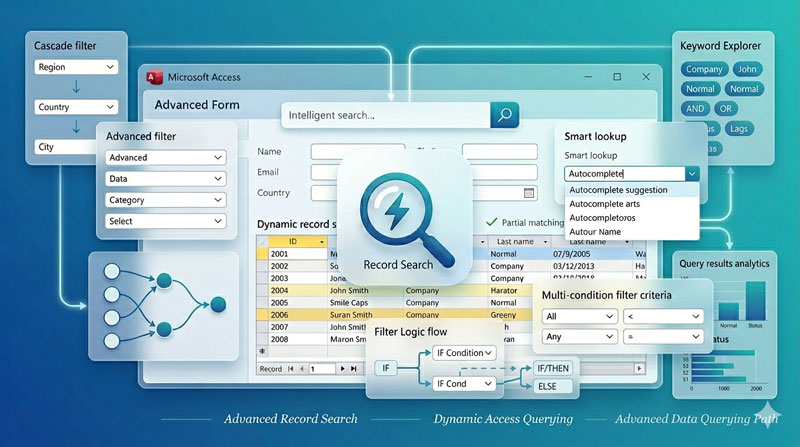
If you’ve followed along with Part 1 and Part 2 of this series, you already know how to search records by text, filter by category, work with number ranges, and filter between dates. That’s a solid toolkit for most databases.
In this final part, we go one step further and build something that feels genuinely modern — a Search as You Type feature that filters records live with every keystroke. We’ll also cover how to add placeholder text to your search boxes so users know exactly what to type, and finish with a practical technique for preventing duplicate usernames in your database using a similar approach.
What Is “Search as Type”?
All the search methods in the previous parts required the user to finish entering their value, then press a button or make a selection to apply the filter. Search as Type is different — the form filters itself automatically with every character the user types. Type “Jo” and you instantly see all records containing “Jo”. Type “Joh” and it narrows further. Delete a character, and the filter updates again.
This is the kind of search experience people are used to from web apps and modern software. Adding it to an MS Access form takes a bit of VBA, but it’s not complicated once you understand the pattern.
Method 1: Basic Search as You Type (Single Field)
The foundation of this technique is the On Change event of a textbox. Every time the user types or deletes a character, this event fires — and we use it to update the form’s filter in real time.
Setup
- Open your form in Design View
- Add an unbound textbox to the form header (unbound means no Control Source — it’s just for input, not tied to a field in the table)
- Name it something clear like
txtSearch - Open the On Change event of this textbox and add the following VBA code:
vba
Private Sub txtSearch_Change()
    Dim strFilter As String

    If Len(Me.txtSearch.Text) > 0 Then
        strFilter = "[Name] Like '*" & Me.txtSearch.Text & "*'"
        Me.Form.Filter = strFilter
        Me.Form.FilterOn = True
    Else
        Me.Form.FilterOn = False
    End If

    Me.txtSearch.SetFocus
    Me.txtSearch.SelStart = Len(Me.txtSearch.Text)
End Sub
What this code does
The Like '*value*' pattern is the key here. The asterisks (*) act as wildcards — they mean “anything before or after.” So if the user types “smith”, Access will find “Smith”, “Smithson”, “Blacksmith” — any record where the Name field contains those letters anywhere.
The Else branch handles the case where the user clears the textbox — it turns off the filter so all records are shown again.
The last two lines (SetFocus and SelStart) are important. Without them, Access can behave oddly when the form refreshes after filtering — the cursor can jump or the textbox can lose focus mid-typing. These lines make sure the cursor stays in the textbox and the text position is preserved after each filter update.
A note on using .Text vs .Value
Inside the On Change event, you must use Me.txtSearch.Text — not Me.txtSearch.Value. The .Text property gives you the current contents of the textbox as the user is actively typing. The .Value property only updates after the textbox loses focus, so it would always be one character behind.
Method 2: Search as You Type Across Multiple Fields
The single-field version is great for searching by name. But sometimes you want a single search box to look across several fields at once — for example, matching against Name, City, and Department all together.
The logic is the same, but the filter string is extended using OR:
vba
Private Sub txtSearch_Change()
    Dim strFilter As String
    Dim strSearch As String

    strSearch = Me.txtSearch.Text

    If Len(strSearch) > 0 Then
        strFilter = "[Name] Like '*" & strSearch & "*'" & _
                    " OR [City] Like '*" & strSearch & "*'" & _
                    " OR [Department] Like '*" & strSearch & "*'"
        Me.Form.Filter = strFilter
        Me.Form.FilterOn = True
    Else
        Me.Form.FilterOn = False
    End If

    Me.txtSearch.SetFocus
    Me.txtSearch.SelStart = Len(Me.txtSearch.Text)
End Sub
Now if the user types “London”, the form will show every record where the Name, City, or Department contains the word London. One search box, multiple fields — just like a real search engine.
Adding a Placeholder to the Search Box
Now that the search textbox is working, it’s a good idea to add a placeholder — a hint that appears inside the textbox when it’s empty, telling the user what it does. Something like “Search by name…” or “Type to filter…” looks much more professional than a blank white box with no label.
MS Access doesn’t have a native placeholder property like HTML does, but you can achieve the same effect using the textbox’s Format property.
How to add a placeholder
- Select your search textbox in Design View
- Open the Property Sheet and go to the Format tab
- In the Format field, enter this:
@;"Search by name..."The @ part handles the normal display when there’s a value. The text after the semicolon is what shows when the field is empty — your placeholder.
By default this placeholder text uses the same color as normal input text, which can look confusing. To make it appear in a softer grey (like a real placeholder), use Conditional Formatting:
- With the textbox selected, go to Format > Conditional Formatting
- Add a new rule: Field Value — Is Null
- Set the font color to light grey
Now when the textbox is empty, the placeholder appears in grey. When the user starts typing, the text turns to the normal color automatically.
Placeholder with a date format
One common issue comes up when you want a placeholder on a date textbox that also needs to display dates in a specific format. The Format field only accepts one format, so you can’t have both Short Date and a placeholder text at the same time — unless you use VBA.
Here’s how to handle it with two events:
vba
Private Sub Form_Load()
    If IsNull(Me.txtDate) = True Then
        Me.txtDate.Format = "@;Enter Date [Red]"
    Else
        Me.txtDate.Format = "Short Date"
    End If
End Sub

Private Sub txtDate_AfterUpdate()
    If IsNull(Me.txtDate) = True Then
        Me.txtDate.Format = "@;Enter Date [Red]"
    Else
        Me.txtDate.Format = "Short Date"
    End If
End Sub
The Form_Load event sets the right format when the form first opens. The AfterUpdate event switches between the placeholder and the date format whenever the user enters or clears a value. Adding [Red] to the placeholder text makes the hint appear in red, making it obvious it’s instructional text and not real data.
Preventing Duplicate Usernames (or Any Unique Field)
The last technique in this part is a bit different — instead of searching or filtering, it’s about validation. But it uses the same On Change / On Key Down approach, so it fits naturally here.
The idea is simple: when a user is entering a username (or any field that needs to be unique), you want to warn them immediately if the value they’re typing already exists in the database — before they even try to save.
How it works
Add a textbox to your form for the username entry. Then use the On Change event to query the table in real time and check for a match:
vba
Private Sub txtUsername_Change()
    Dim strCheck As String
    Dim lngCount As Long

    strCheck = Me.txtUsername.Text

    If Len(strCheck) > 0 Then
        lngCount = DCount("*", "tblUsers", "[Username] = '" & strCheck & "'")

        If lngCount > 0 Then
            Me.lblUsernameWarning.Visible = True
            Me.lblUsernameWarning.Caption = "⚠ Username already taken"
        Else
            Me.lblUsernameWarning.Visible = False
        End If
    Else
        Me.lblUsernameWarning.Visible = False
    End If

    Me.txtUsername.SetFocus
    Me.txtUsername.SelStart = Len(Me.txtUsername.Text)
End Sub
What you need on the form
Along with the username textbox, add a label named lblUsernameWarning positioned just below or beside it. Set its Visible property to No by default (so it’s hidden when the form loads). The VBA code shows or hides it depending on whether a match is found.
DCount is the function doing the real work here — it counts how many records in tblUsers have a Username matching what’s currently typed. If the count is greater than zero, a match exists and the warning label appears. The moment the user changes the text to something unique, the warning disappears.
This gives users immediate, clear feedback without needing to click a button or wait until they save. It’s a small touch that makes your database feel much more polished and reduces frustrating save errors.
Putting the Whole Series Together
Across all three parts, you’ve now built a complete search and filter toolkit for MS Access forms. Here’s the full picture:
| Method | What It Does | Part |
|---|---|---|
| Combo Box Wizard | Find a record by selecting from a list | Part 1 |
| Advanced Combo Box | Find a record with auto-open drop-down | Part 1 |
| Value List Combo Box | Filter by fixed categories | Part 1 |
| Option Group | Filter by visible radio buttons | Part 1 |
| Exact Number Match | Filter by a specific number | Part 2 |
| Number with Factor | Filter with Greater Than / Less Than | Part 2 |
| Between Two Numbers | Filter within a number range | Part 2 |
| Single Date Filter | Filter by an exact date | Part 2 |
| Between Two Dates | Filter within a date range | Part 2 |
| Search as You Type (Single) | Live filter on one field as user types | Part 3 |
| Search as You Type (Multi) | Live filter across multiple fields | Part 3 |
| Placeholder Text | Hint text inside textboxes | Part 3 |
| Duplicate Check | Real-time warning for existing values | Part 3 |
These methods aren’t mutually exclusive — a well-built form often combines several of them. A search box at the top for live name filtering, an Option Group for quick category filtering, a date range picker for time-based filtering, and a duplicate check on any unique entry fields. Put them together and you have a database form that’s genuinely easy and satisfying to use.
Watch the full tutorial on YouTube: Multiple Ways to Search Records in MS Access Form Part 1 by Skill Header, and download the practice files at skillheader.com.