
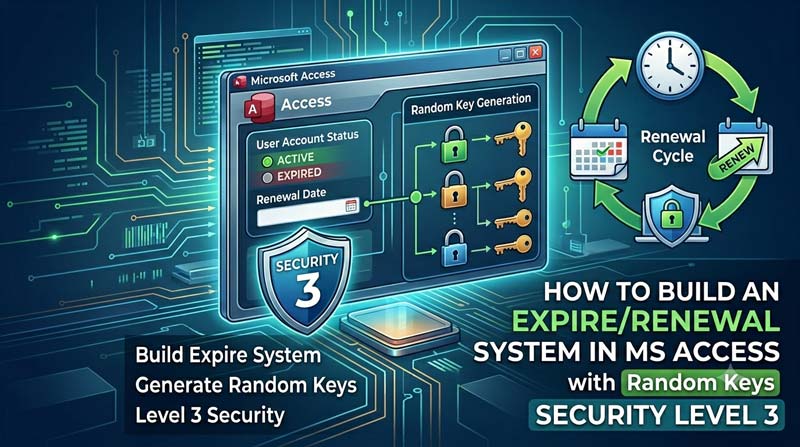
This post walks you through the complete demo shown in the Security Level 3 video by SkillHeader. You will learn how an MS Access database can be set to expire after a subscription period, how to generate unique random activation keys using Microsoft Excel and VBA, and how the Welcome window checks everything on startup before letting any user in.
What Is an Expire & Renewal System in MS Access?
When you build a database in Microsoft Access and share it with clients or users, one of the biggest challenges is controlling how long they can use it. Without proper control, someone could use your database forever without paying for a renewal — or share it with others for free.
An expire and renewal system solves this problem directly. It works like a software subscription. The database is assigned an activation key with a fixed validity period. Once that period is over, the database locks itself and cannot be used until a new valid key is entered. This is exactly what Security Level 3 from SkillHeader implements — and it does it in a dynamic, professional, and automated way.
This is the third and most advanced level in SkillHeader’s database security series. Level 1 covers basic passwords, Level 2 reveals secret codes and locking tactics, and Level 3 adds this full expire and renewal engine on top of everything.
Key Features of This Security System
Here is a quick look at what this system can do out of the box:
📅
Subscription Period
Set a 6-month or annual subscription for each key you issue.
🔔
Reminder Popup
A popup message appears a set number of days before the expiry date.
⏳
Grace Period
Allow a few extra days after expiry before locking the database.
🔒
Auto Database Lock
The database locks itself fully if no renewal key is entered on time.
🎲
Random Key System
Every activation key is uniquely generated using an Excel formula and VBA.
🖥️
Startup Welcome Screen
A custom welcome form runs all checks before the main database opens.
How the Expiry and Renewal Process Works
The system is built around a lifecycle that every database session follows automatically. Understanding this flow is key to understanding how powerful this security layer really is.
The Full Expiry and Renewal Lifecycle
1. Key Activated
Database is activated with a random serial key. The subscription start date and duration (6 months or 1 year) are recorded.
2. Active Period
Users access the database normally. No restrictions are applied. Every launch checks the expiry date silently in the background.
3. Reminder Phase
A configurable number of days before expiry (for example, 7 or 14 days), a popup reminder appears on launch asking the user to renew.
4. Grace Period
After the official expiry date, a short grace window is allowed. The user can still open the database but continues to see renewal warnings.
5. Database Locked
Once the grace period ends, the database is fully locked. No one can access it until a valid new key is entered and verified.
6. Renewed & Reactivated
The user submits a new random key. VBA validates it and, if it matches, resets the subscription clock and unlocks the database.
The activation keys in this system are not simple passwords you type out manually. They are randomly generated strings that combine numbers and letters in a specific pattern. This makes it practically impossible for a user to guess a valid key on their own.
The key generation is done using a single Excel formula. You paste it into any cell and it produces a unique key each time the spreadsheet recalculates:
Excel Formula — Random Key Generator
="SKCT"&RANDBETWEEN(1000,9999)&CHAR(RANDBETWEEN(65,90))&CHAR(RANDBETWEEN(65,90))&CHAR(RANDBETWEEN(65,90))&CHAR(RANDBETWEEN(65,90))&RANDBETWEEN(10000,99999)&"MM"&RANDBETWEEN(10,99)
Breaking Down the Formula
Let’s look at each part of this formula to understand what it produces:
1
“SKCT” — A fixed prefix that makes every key identifiable as belonging to this system. It acts as a brand marker.
2
RANDBETWEEN(1000, 9999) — Generates a random 4-digit number block. This adds a large numeric variation to each key.
3
CHAR(RANDBETWEEN(65, 90)) × 4 — This part uses the ASCII character codes for uppercase letters A through Z. Four random uppercase letters are added in a row, making the key harder to guess.
4
RANDBETWEEN(10000, 99999) — Adds another random 5-digit number block for even greater uniqueness in each key.
5
“MM” — A fixed middle marker used internally to help VBA identify and validate the key structure.
6
RANDBETWEEN(10, 99) — A final 2-digit number that can optionally encode subscription duration, making it part of the validation logic.
A key generated by this formula might look something like: SKCT7423XQMPRANDBETWEEN52341MM76 — unique every time, and structured in a way that VBA can check programmatically.
VBA Key Validation Inside MS Access
Once a key is generated in Excel and given to the user, MS Access needs to verify it when the user enters it during the renewal process. This is where VBA (Visual Basic for Applications) does the heavy lifting.
The VBA code inside the Access database performs several checks when a key is submitted:
1
It reads the key entered by the user and checks whether it matches the expected format (prefix, letter blocks, number blocks, “MM” marker).
2
It compares the key against the stored valid key in a secure, hidden part of the database to verify it has not been used before.
3
If the key passes, VBA writes a new activation record — setting a fresh start date and calculating the new expiry date based on the subscription period encoded in the key.
4
If the key fails, the user sees an error message and the database remains locked.
Example VBA Concept (Simplified)
VBA — Key Validation Logic (Conceptual Example)
Sub ValidateKey()
    Dim enteredKey As String
    Dim storedKey As String

    enteredKey = Trim(Me.txtActivationKey.Value)
    storedKey  = DLookup("ValidKey", "tblSettings")

    ' Check prefix and structure
    If Left(enteredKey, 4) <> "SKCT" Then
        MsgBox "Invalid key. Please try again.", vbCritical
        Exit Sub
    End If

    ' Match against stored key
    If enteredKey = storedKey Then
        SetNewSubscription(enteredKey)
        MsgBox "Activation successful! Subscription renewed.", vbInformation
    Else
        MsgBox "Key does not match. Contact your provider.", vbCritical
    End If
End Sub
Database Welcome Window Startup Checks
One of the most important parts of this system is what happens the moment someone opens the database. Instead of going directly to the main navigation or data entry form, MS Access first opens a custom Welcome Window — a startup form that runs all security checks automatically before anything else loads.
What the Welcome Window Does
Think of the Welcome Window as the security guard at the door. Here is what it checks every time the database is opened:
1
Check activation status: Has a valid key ever been entered? If not, the user is prompted to enter one before proceeding.
2
Check today’s date against expiry: VBA reads today’s date and compares it to the stored expiry date. The result determines which stage the user is in — active, reminder, grace, or locked.
3
Display reminder popup if needed: If within the reminder window, a popup message appears telling the user how many days are left and asking them to renew.
4
Lock the database if expired: If past the grace period, the welcome window does not allow any further access. All navigation is blocked and only the renewal key input is available.
5
Open the main form if all clear: If the subscription is active and no warnings are needed, the database opens normally into the main menu or dashboard.
How It Is Set as the Startup Form
In MS Access, you can set any form to open automatically when the database starts. This is done through File → Options → Current Database, where you set the Display Form to your Welcome Window form name. This ensures no user can skip past the security checks by opening the database directly.
Feature Summary Table
| Feature | What It Does | Where It Lives |
|---|---|---|
| Subscription Period | Sets a 6-month or 1-year validity window for each activation key | VBA + tblSettings table |
| Random Key Generator | Produces unique activation keys using an Excel formula with RANDBETWEEN and CHAR | MS Excel spreadsheet |
| Key Validation | VBA checks the entered key for correct format and match against the stored key | MS Access VBA module |
| Reminder Popup | Warns the user N days before expiry to renew their subscription | Welcome Window VBA |
| Grace Period | Allows a short post-expiry window before the database is fully locked | Startup check logic |
| Auto Lock | Blocks all database access after the grace period ends, until a new key is entered | Welcome Window form |
| Welcome Window | Runs all security checks on startup before the main database opens | Access Startup Form setting |
📥 Get the Full Source Code
The complete MS Access and Excel source files for this expire and renewal system — including all VBA code, the Welcome Window form, and the key validation logic — are available to paid subscribers on SkillHeader.
💰 50% discount available today · Level 2 subscribers get Level 3 free
Frequently Asked Questions
Can I set a custom number of days for the reminder and grace period?
Yes. These values are configurable in the system. You decide how many days before expiry the reminder popup should appear, and how many grace days to allow after expiry before fully locking the database.
Does the user need Excel to enter the activation key?
No. Excel is only used by the database developer or administrator to generate keys. The end user simply types or pastes the key they receive into the Access renewal form. They never need to open Excel themselves.
What happens if someone tries to bypass the welcome window by pressing Shift?
The Security Level 2 video in this series covers how to disable the Shift key bypass and other methods users might try to skip the startup checks. It is strongly recommended to apply all levels together for full protection.
Can I change the “SKCT” prefix in the key formula?
Yes. The prefix is just a text string in the Excel formula. You can replace “SKCT” with your own brand or product code. Just make sure to update the corresponding check in the VBA validation code so they match.
Is this system suitable for distributing databases to external clients?
Absolutely. This is exactly the use case it is designed for. You distribute the database to a client, give them an activation key with a defined expiry, and issue a new key each time they renew. The entire renewal process is handled inside Access with no external tools needed on the client side.
Conclusion & Download
The expire and renewal system shown in the Security Level 3 video is one of the most practical ways to protect and monetize a Microsoft Access database. Instead of relying on simple passwords that users can share freely, you get a fully automated subscription engine — complete with random key generation, date-based expiry, reminder popups, grace periods, and a locked-door startup window.
The Excel formula for random key generation is simple but clever, producing keys that are structured enough for VBA to validate but random enough to be unpredictable. The Welcome Window ties everything together by running all checks before a single form or table is accessible.
If you are building and distributing MS Access databases for clients or internal teams and need a professional way to control access by subscription, this system gives you everything you need in a clean, ready-to-use package.
Watch the full demo video above, and visit the link below to get the complete source files with all VBA code and form structures included.
👉 Download the Source Files at SkillHeader →
Tags: #MSAccess#VBA#DatabaseSecurity#ActivationKey#ExcelVBA#ExpirySystem#DatabaseRenewal#SubscriptionSystem#RandomKey#AccessTutorial