

If you’ve spent time working in Excel and wonder if there’s a better way to handle large, structured data, MS Access might be exactly what you need. This post walks you through the key concepts covered in the MS Access Tutorial Level-1 by Skill Header, so you can follow along, learn faster, and actually understand what you’re building.
Why MS Access?
A lot of people assume databases are only for developers or IT professionals. That’s not true. If you’re comfortable with spreadsheets, MS Access is a natural next step. It’s part of the Microsoft Office family, which means the interface feels familiar. But unlike Excel, Access is built specifically for storing, organizing, and querying data in a structured way.
The real power of Access comes when your data grows — when you have multiple lists that relate to each other, when you need to filter and search records instantly, or when you want to build forms and reports on top of your data. That’s where it shines.
Understanding MS Access Table Field Types
In Microsoft Access, field types define the kind of data that can be stored in a table column. Choosing the correct field type is important because it helps organize data properly, improves accuracy, and makes database operations easier. For example, the Short Text field type is used for names and addresses, while the Number field type is used for calculations. MS Access also provides special field types such as Date/Time, Currency, and AutoNumber to handle specific kinds of information efficiently. Understanding these field types helps beginners design better databases and avoid common data entry mistakes.
| MS Access Field Type | Description | Example Use |
|---|---|---|
| Short Text | Stores alphanumeric data up to 255 characters. | Names, phone numbers, codes |
| Long Text | Stores large amounts of text (notes, descriptions, comments). | Remarks, article content |
| Number | Stores numeric values used in calculations. | Age, quantity, marks |
| Large Number | Stores very large integer values (BigInt). | System-generated IDs |
| Date/Time | Stores dates and times. | Birth date, appointment time |
| Currency | Stores monetary values with fixed precision. | Prices, salaries |
| AutoNumber | Automatically generates a unique number for each record. | Primary key ID |
| Yes/No | Stores Boolean values (True/False). | Active/Inactive, Paid/Unpaid |
| OLE Object | Stores objects created in other applications. | Word documents, images |
| Hyperlink | Stores web addresses, email links, or file paths. | Website URLs |
| Attachment | Stores one or more files attached to a record. | Photos, PDFs |
| Calculated | Stores results of calculations based on other fields. | Total price = Qty × Rate |
| Lookup Wizard | Creates a field that displays values from another table or list. | Department names from a department table |
| Replication ID | Stores a globally unique identifier (GUID). | Replicated database records |
Creating Your First Table
To create a table, you open Access, start a new database, and switch to Design View. Here you define your fields and their types before entering any data.
In MS Access, a table is where your data lives. Think of it like a spreadsheet — rows are records, columns are fields. But here’s the difference: each field has a defined data type, which controls exactly what kind of data can go in it (text, numbers, dates, yes/no, etc.).
The Lookup Wizard
One of the more useful field types is the Lookup Wizard. Instead of typing the same values over and over (like department names or status labels), the Lookup Wizard lets you create a drop-down list for that field. You pick from a fixed list of values, which keeps your data clean and consistent.
Primary Keys — What They Are and Why They Matter
Every table needs a Primary Key. This is a field (usually an ID number) that uniquely identifies each record. No two rows can have the same primary key value.
Access often creates an AutoNumber field automatically for this purpose, which is fine for most cases. The primary key is also what connects tables to each other later — it’s the foundation of a relational database.
Entering Data and Using Calculated Fields
Once your table is set up, you switch to Datasheet View to enter records. This view looks and feels like a spreadsheet, so it’s easy to get started.
But here’s something powerful: Calculated Fields. Instead of manually computing a value (like total price = quantity × unit price), you can define a field that does the math automatically. Access recalculates it every time related fields change.
The Expression Builder
When building calculated fields or query criteria, the Expression Builder is your best friend. It’s a built-in tool that helps you write formulas without having to remember exact syntax. You can browse functions, field names, and operators from a point-and-click interface — similar to Excel’s formula helper, but for Access.
The Employee Table: This table stores the data for the employees.
| Field Name | Data Type | Purpose |
|---|---|---|
emp_id | AutoNumber (Primary Key) | Unique Employee ID |
emp_firstname | Short Text | Store First Name |
emp_lastname | Short Text | Store Last Name |
emp_gender | Short Text | Store Gender (You can use Lookup Wizard for dropdown selection.) |
emp_age | Number | Store Age |
emp_city | Short Text | Store City name |
emp_Address | Short Text | Store Address |
emp_jobtitle | Number | Linked ID of Job Title from table [JobsTable] |
emp_department | Number | Linked ID of Department from table [DepartmentTable] |
emp_salary | Currency | Store Employee Salary |
emp_Allownce | Currency | Store Employee Allowance Amount |
emp_total | Calculated | Calculation of Total Salary: emp_salary + emp_Allownce |
The Method: How to Apply Field Formatting
Applying a format takes just a few clicks in your table’s setup screen. Follow these steps:
1. Switch to Design View:
Right-click your table in the left navigation pane and select Design View.
2. Select Your Field:
Click on the specific row/field you want to style (for example, emp_total or emp_salary
3. Locate Field Properties:
Look at the bottom half of your screen. Under the General tab, find the row labeled Format.
4. Apply the Format:
Click the drop-down arrow in the Format box to choose a standard layout (like Currency or Short Date for the date field) or type a custom format code directly into the box. Save your table!
Building Queries
A query is how you ask questions of your data. Instead of scrolling through hundreds of records, a query pulls out exactly what you need.
In Access, queries are built using the Query Design view — a visual grid where you drag in the fields you want and set conditions. For example:
- Show me all orders placed after January 1, 2024
- List all customers from Lahore
- Find all products with stock below 10 units
Filtering with Criteria
In the query grid, you add criteria below a field to filter results. You can use exact matches, ranges, wildcards, and logical operators (AND / OR). It’s more flexible than a spreadsheet filter and far more repeatable — save the query once, run it anytime.
Query Parameters
Taking it a step further, parameter queries let you type in a filter value each time you run the query. Access prompts you with a dialog box asking “Enter a value” — whatever you type becomes the filter on the fly. This is great for building queries that other people can use without touching the design.
Connecting Tables with Lookup Fields
Here’s where things get really interesting. Suppose you have a Customers table and an Orders table. Instead of retyping the customer’s name in every order, you link the two tables — the Orders table references the Customers table through a shared field (usually the customer ID).
The Lookup Wizard can do this automatically. It builds a drop-down in your table that pulls its options from another table. So when a new customer is added to the Customers table, it automatically appears in the drop-down for Orders. Your data stays consistent and connected.
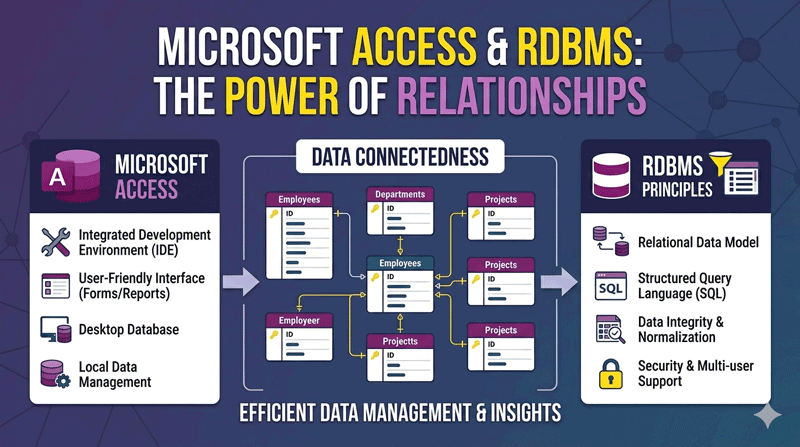
What is RDBMS?
By this point, you’re already working with a Relational Database Management System (RDBMS) — you just might not have called it that yet.
An RDBMS is a system that stores data in related tables and uses those relationships to retrieve and manage information efficiently. MS Access is a lightweight RDBMS. Other examples include SQL Server, MySQL, and PostgreSQL. The core concept — tables, primary keys, relationships, and queries — is the same across all of them.
Learning Access gives you a real foundation in relational database thinking, which transfers directly to more advanced tools if you ever need them.
Quick Recap
Here’s what the Level-1 tutorial covers:
| Topic | What You Learn |
|---|---|
| Tables | How to create and structure your data |
| Lookup Wizard | Drop-downs from fixed lists or other tables |
| Primary Key | Unique identifier for each record |
| Data Entry | Working in Datasheet View |
| Calculated Fields | Auto-computed values from other fields |
| Expression Builder | Visual formula builder inside Access |
| Queries | Pulling specific data from your tables |
| Query Criteria | Filtering records by conditions |
| Query Parameters | Dynamic user-input filters |
| Table Relationships | Linking tables through shared fields |
| RDBMS | The concept behind relational databases |
Final Thoughts
MS Access gets overlooked because it sits quietly in the Office suite, behind Word and Excel. But for anyone who works with structured data — HR teams, inventory managers, small business owners, researchers — it’s an incredibly capable tool.
The best part? You don’t need to write a single line of code to build something useful. Start with a table, build a query, connect your data — and you’ll have a working database before you know it.
If you want to follow along with the video, check out the MS Access Tutorial Level-1 on YouTube by Skill Header, and download the practice files at skillheader.com.