In this section, you will learn the advanced functionality of the Login System and how to make the change password system in MS Access functional with VBA and SQL coding. You can go through the first and the second part of the Ultimate Login System.
Overview of Change Password System
Changing the Password is the most important part of any login system in which the user can change the password at any time to secure his account especially when a user assumes for any unauthorized use of his account.
Old Password Verification
The user must enter his old password before getting into the change password system. To ensure this, you can create one of these options:
- Verification of the old password from the same Username and Password text boxes section which are used to log in and proceed to change the password
- Having 2 separate text boxes to emphasize the user to enter his Username and Password before proceeding to change the password
We will use the first option to ensure the old password is correct in this project.
Password Policy
An important aspect when securing the account is not only establishing user passwords but also creating an effective password policy. Many configurations can be applied to secure the password from which we are going to apply these functions:
- The old password must be verified with the username
- User must enter the same password in both text boxes related to New and Verify Password
- The password entered in both text boxes should be matched
- Enforce the creation of a password with a minimum of 8 characters
Other Password Policy Configuration Factors
Other password configuration policy factors can also be applied like:
- The maximum character length of the password
- Enforce users to enter numbers and characters
- Enforce users to use upper and lower case combinations with digits and special characters
- Prevent the user from using any common word as a password like his username
Redirecting to the login form
After successfully changing the password, the login form will reopen and the user will be redirected to it rather than to proceed to log in because the username and password were already verified while changing the password.
Advanced configuration related to Password and Account Management can be applied in several other ways:
Force users to change passwords regularly
Prevent and secure account after a certain number of failed login attempts
Track and prevent password reuse
If users are part of the business, it should affect or lock out the login form based on the status like disabled, inactive, or resigned if a user is an employee.
Steps of Change Password System in MS Access
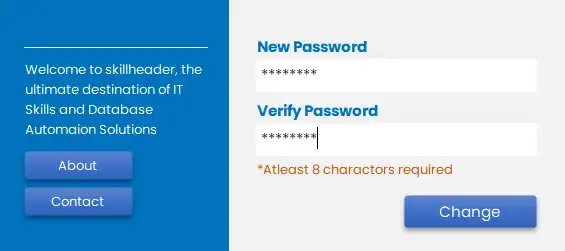
Firstly, the objects including 2 text boxes, a label, and the change button will be hidden so these can be unhidden only with a Password Change button clicked. It is important to know that this button-click event will verify the existing username and the old password.
Change Password Button on Click Event
Here is the code for the Change button On Click event:
Private Sub btn_changepassword_Click()
'Checking if both text boxes are empty and return a message
If DCount("uusername", "usertable", "uusername = '" & txt_username & "' and upassword = '" & txt_password & "'") = 0 Then
    MsgBox "Please fill both Username & Password with your credentials !", vbExclamation, "| Fill the empty text boxes |"
        Else
            'Proceeding to authenticate the Username and Password
            If DCount("uusername", "usertable", "uusername= '" & txt_username & "' and upassword= '" & txt_password & "'") = 0 Then
                MsgBox "Username or Password is wrong !", vbCritical, "| Wrong Data |"
                    Else
                        'Makind both text boxes disabled while changing password to avoid conflict
                        Me.txt_username.Enabled = False
                        Me.txt_password.Enabled = False

                        'Proceeding to unhide the new password area
                        Me.txt_newusername.Visible = True
                        Me.txt_verifypassword.Visible = True
                        Me.btn_change.Visible = True
                        Me.Lbl_change.Visible = True
        End If
End If
End Sub
Apply Password Mask
Applying a Password Mask to both text boxes is optional.
Proceed to the Change Password Button
Here is a Change button Code to proceed to change the password:
Private Sub btn_change_Click()
'check the empty textboxes
If IsNull(Me.txt_newusername) = True Or IsNull(Me.txt_verifypassword) = True Then
    MsgBox "Please fill both fields !", vbExclamation, "| Fill the empty text boxes |"
        Else
            If Me.txt_username <> Me.txt_verifypassword Then
                MsgBox "Password do not match !", vbCritical, "| Password not matched |"
                Me.txt_newusername.SetFocus
                    Else
                        If Len(Me.txt_newusername) < 8 Then
                            MsgBox "More than 8 characters are not allowed !", vbInformation, "| Character Length |"
                            Me.txt_newusername.SetFocus
                                Else
                                    DoCmd.SetWarnings False
                                    On Error GoTo err_h
                                        DoCmd.RunSQL "UPDATE usertable" & _
                                        " SET usertable.upassword = """ & Me.txt_verifypassword & _
                                        """ WHERE usertable.uusername = """ & Me.txt_username & """"
                                        DoCmd.SetWarnings True
                                        MsgBox "The password has been changed successfully ! Please login again.", vbInformation
                                        Me.txt_username = Null
                                        Me.txt_password = Null
                                        Me.txt_username.Enabled = True
                                        Me.txt_password.Enabled = True
                                        Me.txt_username.SetFocus
err_h:
Cancel = True
                End If
        End If
End If
End Sub