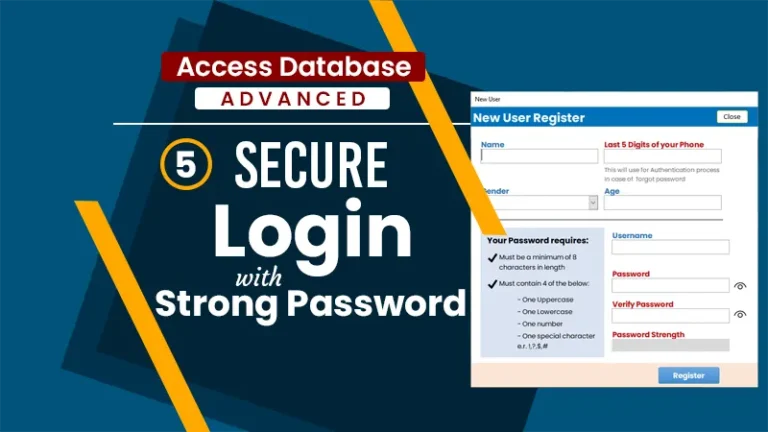
Are you tired of paying hundreds or even thousands of dollars every single year for accounting software like QuickBooks or Xero? You’re not alone! Those endless subscription fees can crush a small business budget. Imagine being able to Build Accounting Software in MS Access a fully customized, multi-user system you create for free! Ditch those expensive subscriptions and gain total control over your financials.
That’s exactly what the team at SkillHeader teaches you in their incredible, 100% free YouTube playlist: “Master Business Accounting in MS Access.”
This is one of the most detailed, practical project available online for building a powerful, real-world financial management tool from the ground up, step-by-step.
Whether you’re a business owner desperate to stop paying monthly or annual subscription fees, an accountant who wants total control, or a developer looking to master MS Access and VBA, this course is your complete roadmap to financial freedom. You can even grab the entire project’s open-source files and source code for a small, single payment to jumpstart your build! Click here to see how.
Why Learn to Build Accounting Software in MS Access?
- Cost-effective: Perfect for small to medium businesses that need powerful features without the big price tag.
- Fully customizable: Add exactly the features your business needs — no bloat, no limitations.
- Multi-user ready: Supports multiple staff with different permission levels.
- No coding degree required: Starts simple and gradually introduces VBA as needed.
By the end, you’ll have a complete accounting system that handles inventory, sales, purchases, invoicing, profit & loss reports, dashboards, and much more.
Ready to get started? Here’s a full breakdown of what each video covers with comprehensive explanations of the major topics to give you a broader understanding of the concepts, techniques, and real-world applications.
Complete Video-by-Video Project Guide
Video 1: Introduction – A Complete Business Accounting Solution in MS Access
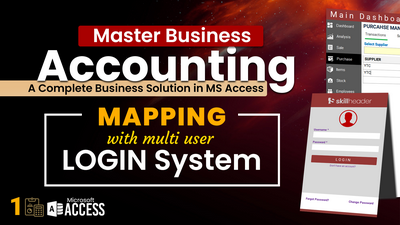
This opening video explains what the whole project is about. It shows how a simple database tool like MS Access can grow into a complete accounting system. The video is meant to inspire beginners and also help experienced users understand how accounting ideas can be combined with database design.
Project Vision and Accounting Integration
The video explains how MS Access can be turned into a complete business tool that follows basic accounting rules like assets, liabilities, equity, income, and expenses. It shows how these accounting ideas fit into database parts, like tables to store financial information and relationships to keep data accurate. This helps you build a system that works well and can be used in different industries, such as retail, manufacturing, or services. Understanding this also shows why custom software is better than generic tools, it focuses on what you really need, saves time, and reduces mistakes when tracking finances.
Core Features Preview and System Demo
The instructor gives a quick look at the main features of the finished software. These include multi-user logins with security, automatic event logs for audits, task boards for teamwork, a chart of accounts for organizing finances, inventory alerts, sales and purchase tracking, cash flow analysis, ledgers and journals, profit and loss reports, and even payroll for HR. Each feature is shown briefly to explain how they work together, for example, a sale automatically updates stock and financial records. This shows how the system works like professional software such as QuickBooks but can be fully customized.
Development Roadmap and MS Access Fundamentals
The roadmap shows how to move step by step from basic setup to advanced automation. It covers key MS Access parts: tables to store data, queries to analyze it, forms for easy use, reports for output, and VBA/modules for custom logic and automation. You’ll also learn best practices like avoiding duplicate data, handling errors in code, and improving performance. This section also talks about real-world challenges, like moving data from Excel or letting multiple users work at the same time, preparing you to apply these skills in real projects.
Video 2: User Management and Event Logging
Security is crucial in financial apps, and this video focuses on building a fantastic user system to protect sensitive data, making it essential for businesses with teams.
User Authentication and Session Management
The video explains how to make a secure login system. You’ll see how to create a login form that checks usernames and passwords against a users table using VBA.
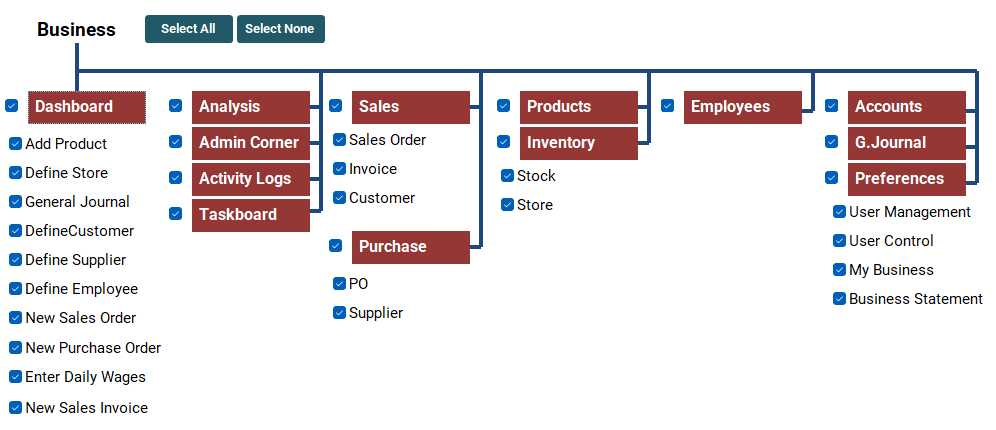
Role-Based Access Control (RBAC)
RBAC lets you give users different access levels. For example, an admin can do everything, an accountant can edit financial data, and a viewer can only read information. The video shows how to make role tables, link them to users, and use VBA to show or hide features depending on the role. It also explains best practices like giving users only the permissions they need and planning for new roles as your business grows. This helps you create a system that supports teams with different responsibilities without risking data security.
Event Logging and Audit Trails
Event logging automatically keeps track of actions like logins, edits, or deletions. Each log includes the time, user ID, and details for reference. The video shows how to use VBA to capture this information and how to filter it using queries. Logs can help troubleshoot problems, spot unusual activity, and produce audit reports for taxes or compliance. This feature makes your database more professional, reliable, and accountable.
Video 3: Chart of Accounts – The Heart of Accounting
Every accounting system starts with a well-structured chart of accounts, and this video teaches you how to set it up for accurate financial categorization.
Account Structure and Categorization
The video shows how to set up tables for main account types like assets, liabilities, equity, revenue, and expenses. You’ll create fields for things like codes, names, types, and starting balances, and organize sub-accounts in a hierarchy. You’ll learn how to customize it for different industries, such as adding cost centers for manufacturing, and how to make the system handle thousands of accounts without slowing down.
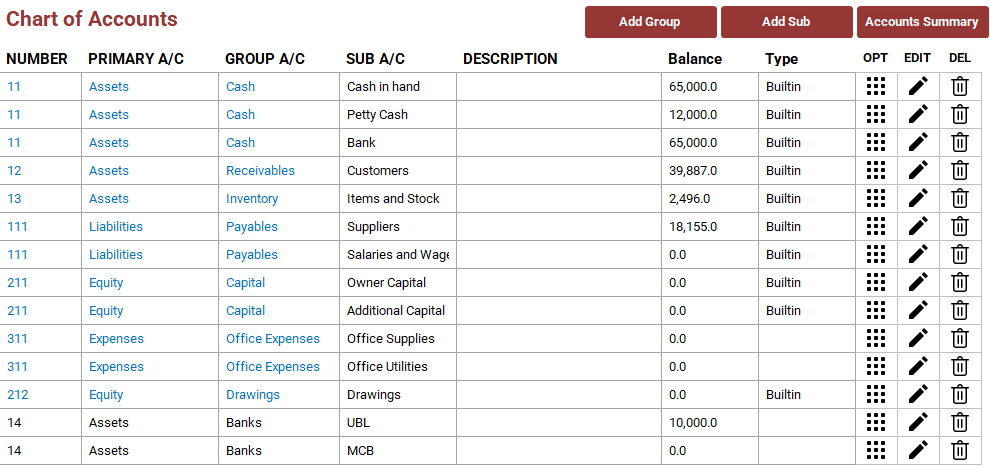
Form Design and Data Entry
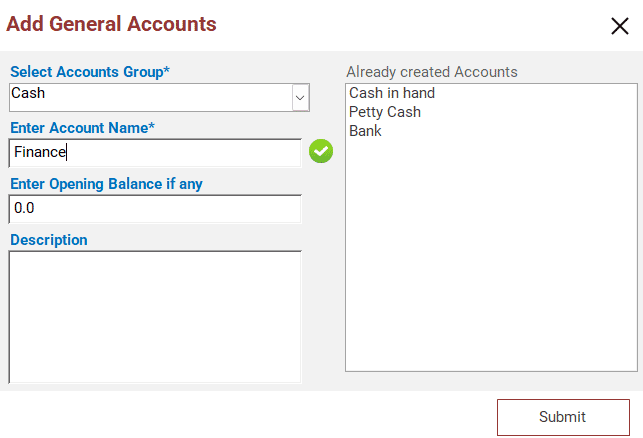
You’ll learn how to make easy-to-use forms for adding or editing accounts. This includes features like dropdowns for account types, input masks for codes, and VBA checks to prevent duplicate or wrong entries. The video also covers user-friendly design, like tabs for navigation and integrated search functions. Good form design helps reduce mistakes and makes daily tasks faster, so even accountants who aren’t tech-savvy can use the system.
Queries for Balance Verification and Reporting
The video introduces basic queries to check account balances, total up categories, and find errors using SQL in Access. You’ll also see how to link these queries to reports for quick overviews and prepare data for advanced analysis, like tracking trends over time. This ensures your financial data is accurate, which helps prevent mistakes during audits or important business decisions.
Video 4: Advanced Chart of Accounts Grouping & Management
Building on basics, this video advances to grouping and maintenance for larger, more complex financial structures.
Hierarchical Grouping and Nesting
The video shows how to create nested account groups, like Expenses → Office → Supplies, using queries. This also makes budgeting easier and can be adapted for businesses with multiple companies.
Management Tools for Updates and Searches
You’ll learn how to build tools in VBA for bulk updates, advanced searches, and sorting to manage large charts of accounts efficiently. The video also covers importing/exporting data from Excel and using conditional formatting to highlight problems. It explains maintenance strategies, like reviewing and removing old accounts, to keep the system running smoothly over time.
Integration with Other Modules
The chart of accounts is set up to link smoothly with other parts of the system, like journals, invoices, and reports, using lookup fields and foreign keys. You’ll see how to prevent errors, for example, by auto-filling account selections. This creates a connected system where data flows automatically, reduces manual work, and improves accuracy.
Video 5: Products and Store Management
Shift focus to inventory basics, essential for businesses dealing with goods.
Product Database Design and Relationships
The video explains how to set up tables for products, including fields for SKUs, descriptions, costs, prices, categories, suppliers, and images. It also shows how to link tables to avoid isolated data and reduce duplicates. You’ll learn how this setup helps track product variants (like sizes or colors) and supports calculations for cost of goods sold (COGS), which ties into sales and profitability analysis.
Store Management Forms and Interfaces
You’ll learn how to make easy-to-use forms for adding, editing, or deleting product data. VBA is used to check data in real-time and perform automatic calculations. This teaches user-friendly design, making inventory management simple and efficient for warehouse staff.
Foundation Queries for Inventory Insights
The video shows how to build queries to summarize stock, track reorder levels, and break down products by category using aggregate functions. You’ll also see how to use these queries for forecasting demand and triggering alerts, helping create a smart inventory system that reduces overstock and keeps products available.
Video 6: Advanced Filtering and Sorting in Forms

Enhance usability with dynamic data navigation, critical for handling large datasets.
Dynamic Filtering Techniques
You can add search filters to forms so users can find data by words, numbers, or dates. Use drop-down menus (combo boxes) and simple code (VBA) to change what shows up in the form. The video shows how to use special symbols (wildcards) for fuzzy searches and “AND/OR” to combine rules. Overall, this helps big databases run smoothly and lets people make faster decisions by seeing only the important info right away.
Custom Sorting Mechanisms
Let users sort data by clicking column headers or buttons for example, sort by price high to low. Use code (VBA) to switch between up or down order and remember what the user likes. It works great with filters to show custom views. Plus, it keeps things fast even when used live, so the app feels quick and easy.
Performance Optimization Strategies
To make forms load fast, add indexes to important fields (like quick search tags), use free-floating controls that don’t load everything at once, and limit how many records show up. This helps your app grow with your business handling more data without slowing down.
Video 7: Inventory and Stock Management
Advance inventory to real-time tracking and automations.
Stock Transaction Tables and Valuation
Make tables to track items coming in or going out, including batches and ways to value stock (like first-in-first-out or last-in-first-out). Link them together for easy checks later. It also covers calculating average costs and managing stock in different places. This keeps your inventory tied to your money health, helping you know what’s worth what.
Automated Alert Systems
Use code (VBA) to send pop-up warnings or emails when stock gets low, based on set limits and how long it takes to restock. This connects to suppliers for “just-in-time” buying, so you don’t waste money holding extra stuff.
Reporting and Analysis
Create reports showing stock worth, how fast it sells, and old items. You can export them to other programs. This helps you spot trends, like what sells best, to make smarter business choices.
Video 8: Suppliers or Vendors Management
Create tables for contact details, credit terms, payment history, and ratings, with support for attachments like contracts. The video explains relationships with purchase modules and how this data supports spend analysis. Broader insights include risk management, such as tracking supplier performance to avoid disruptions in the supply chain.
Vendor Database Design and Profiles
Build tables to store supplier info like contacts, payment terms, past buys, and ratings. Add space for files like contracts. It links to buying tools and helps track spending. This way, you can watch how reliable suppliers are and avoid problems like delays.
Forms and Workflow Integration
Make easy forms to add or change supplier details, with checks to avoid mistakes and mini-forms for related orders or payments. Code (VBA) adds auto-emails for approvals. It’s all about making things simple and quick, so you spend less time on paperwork.
Queries for Supplier Analytics
Write queries to sum up what you spent on suppliers, how dependable they are, and unpaid bills. Use this to bargain better prices or find new suppliers, saving money and building good long-term deals.
Video 9: Customer Management
Mirror the supplier module for customer management, emphasizing sales-side relationships and data integrity.
Customer Database and Profiles
Set up tables for customer details like age, credit limits, buy history, and notes. Add your own fields for likes. Link it to sales data to group customers. This helps with marketing and keeps customers happy by treating them personally.
Navigation Forms and Validation
Design tabbed forms (like book pages) for fast access to customer orders, bills, and history. Use code (VBA) for auto-filling and checking for duplicates. This makes helping customers quicker and cuts down on mistakes.
Query Links for Customer Insights
Build queries to connect customer data for insights like total buys or overdue payments. This lets you see patterns and improve service, like offering special deals to loyal buyers.
Video 10: Sales Order Management

Dive into sales processes, starting with order management to track customer requests from initiation to fulfillment.
Sales Order Tables and Structure
Create tables for order headers (like date and total) and details (items bought), linked to customers and products. Handle things like partial deliveries or discounts. This helps track money coming in and plan future sales.
Management Forms and Automation
Make forms to create and approve orders, with sections for items. Use code (VBA) to check stock and stop over-selling. This keeps sales running smoothly without mix-ups, even when busy.
Workflows and Integrations
Set up steps for orders (from new to shipped) with alerts. Link to stock and money records. This speeds up everything and keeps customers happy with updates.
Video 11: Invoice Management with Order Items
Learn to generate invoices from orders, automating billing for accurate and professional financial documentation.
Invoice Database Design
Build tables for bill headers, items, taxes, and totals, connected to orders so they fill automatically. Supports different currencies and follows billing rules. This manages money owed to you better.
Automation and Calculations
Use code (VBA) to pull from orders, add up discounts and taxes, and number bills. This avoids mistakes and gets money in faster with quick, right billing.
Printing and Export Features
Create nice bill designs with your logo and details, plus options to save as PDF or Excel. Connect to email for sending. This makes collecting payments easier and looks professional.
Video 12: Order Shipping Process

Handle the logistics side of sales with shipping management, ensuring seamless fulfillment.
Shipping Tables and Tracking
Make tables for shipping info like delivery company, tracking number, cost, and status, linked to orders. Track times to see where to save money on shipping.
Process Forms and Updates
Build forms to start shipments, print labels, and update status, with code (VBA) sending customer alerts. This makes delivery faster and fewer delays.
Integration with Inventory and Accounts
Automatically reduce stock when shipped and update bills or money records. This gives customers real-time tracking and cuts errors in sending stuff out.
Video 13: Purchase Order PO Management
Introduce purchase orders for structured buying, focusing on management and approvals.
PO Workflow Design
Set up a clear step-by-step process for purchase orders, starting from requesting items to getting approvals. Include ways to track status and keep logs of changes. This keeps everyone accountable when buying things and helps control spending within your budget.
VBA Events and Notifications
Add simple code (VBA) that sends emails automatically when a new PO is made. It can also show quick forecasts of stock needs. This makes your team respond faster to what suppliers need to send.
Queries for PO Summaries
Create queries to show pending purchase orders, what each supplier owes, and budget details. This helps you choose better suppliers and save money in the long run.
Video 14: Auto Pricing Process
Automate pricing to ensure consistency in sales and purchases.
Pricing Rules and Formulas
Make tables to store rules for adding extra charges (markups), giving discounts, or pricing based on quantity bought. You can add your own special rules. The video shows how to use them in sales or bills to protect your profit margins.
Automation Scripts in VBA
Write code to automatically apply pricing rules when making orders or invoices. It allows changes if needed and updates everything. This stops pricing mistakes and makes giving quotes much faster.
Integration with Products and Customers
Connect pricing rules to your product and customer info. This lets you give special prices to loyal customers or run reward programs, helping you stay competitive.
Video 15: Complete PO Purchase Order Process
Cover the full PO lifecycle, including receiving and payments for comprehensive procurement.
Multi-Stage Process Management
Go through the full purchase order steps in detail: placing the order, receiving goods, checking quality, and billing. Add status updates along the way. This makes your supply chain run smoother and builds better relationships with suppliers.
Inventory Synchronization on Receipt
When goods arrive, the system automatically updates stock levels and costs. This keeps your inventory numbers accurate and reliable.
Audit Trails and Compliance
Keep a record of every change made, so you can trace who did what and when. This helps solve arguments and follow rules or laws easily.
Video 16: Progress Recap of the Evolution of Master Business Accounting
Take a moment to review progress, highlighting key milestones and troubleshooting common issues.
Project Milestones Review
Look back at all the parts you’ve built so far and how they connect. This recap helps you remember what you’ve learned and feel good about your progress.
Challenges and Solutions
Talk about common problems, like data not matching up, and how to fix them. It also shares good habits for finding and solving bugs in your database.
Future Outlook and Tips
Give a sneak peek at what’s coming next and tips for making the system your own. This keeps you excited to keep building.
Video 17: Business Management Startup Level 1

Begin the business setup phase with initial configurations for a smooth launch.
Startup Wizard Guidance
Build simple step-by-step forms (like a wizard) to enter company info, add users, and set basics. This makes it easy for new people to get started without confusion.
Basic Configuration Options
Choose settings like your currency, tax percentages, financial year start, and other preferences. It also covers changing things to match laws in your country or area.
Initial Testing Procedures
Run fake tests of everyday tasks to check everything works right from the start. This catches problems early before using it for real.
Video 18: Chart of Accounts Startup Level 2
Advance startup by populating the chart of accounts efficiently.
Bulk Data Import from Excel
Learn easy ways to bring in lots of account data from Excel files. It includes matching columns and checks to stop wrong info from getting in.
Validation Scripts and Checks
Use code (VBA) to automatically check that all imported data is complete and correct during setup.
Industry Customization
Change the chart of accounts to fit your type of business (like retail or services). This sets you up for easy growth later.
Video 19: Accounts Opening Balances Level 3

Enter historical data accurately to start with reliable financials.
Balance Entry and Double-Entry
Forms for inputting opening balances with auto-balancing logic.
Reconciliation with External Data
Queries to match bank statements or prior records.
Rollback and Testing Modes
Safe options for corrections, ensuring a clean start. [Screenshot Placeholder: Balanced entry confirmation]
Video 20: General Journal Debit Credit Transactions
Master transaction recording in the general journal for core bookkeeping.
Journal Entry Design
Create forms for entering debits and credits, with spaces for notes and references. The form makes sure everything balances automatically.
Debit/Credit Rules and Validation
Explain the basic accounting rules for debits and credits, plus code (VBA) checks to stop unbalanced entries.
Posting to Ledgers
Automatically send journal entries to update account balances. This shows how transactions move through the whole system smoothly.
Video 21: Ledger and Financial Reporting
Manage ledgers and generate basic reports for financial oversight.
Ledger Maintenance Tools
Keep track of account histories and current balances. Add easy search tools and options to edit entries safely. This makes it simple to find and fix things when reviewing finances.
Report Generation Basics
Use queries to create simple reports like trial balances (showing all debits and credits match) and quick summaries. This gives you a clear picture of your money at any time.
Customization for Periods
Add filters so reports show data only for certain dates, like a month or year. This makes analysis flexible and helps spot trends over time.
Video 22: How to Apply Add-on for General Journal Ledger

Extend functionality with add-ons for journals and ledgers.
Add-on Installation Process
Follow easy steps to add ready-made extras for journals and ledgers. They fit right into your system without breaking anything.
Configuration and Compatibility
Change settings in the add-ons to match your setup, then test to make sure everything works together smoothly.
Testing and Enhancements
Check new features like better search filters. This opens the door to building more custom parts later, growing your system as needed.
Video 23: Final Business Startup

Complete setup and prepare for live use with final tests.
Full System Testing
Run fake real-life tests from start to finish (like making a sale and checking stock). This finds and fixes problems before using it for real business.
Backup and Recovery Plans
Split the database into front and back parts so multiple people can use it at once over a network without crashes.
Granular Control Implementation
Set up automatic backups and easy ways to restore data. This keeps your info safe if something goes wrong.
Video 24: User Access Control
Fine-tune user permissions for enhanced security.
Granular Control Implementation
Use code (VBA) to hide or lock menus and fields based on a user’s role. Only the right people see or change sensitive parts.
Admin Management Dashboard
Give admins a simple screen to add, change, or remove user access quickly.
Security Best Practices
Add basic encryption and ways to watch activity. This lowers risks like data leaks and keeps everything safer.
Video 25: Profit and Loss Statement
Generate essential financial reports like profit and loss for performance insights.
P&L Query Aggregation
Use smart queries to add up income and expenses for any time period. This creates accurate profit and loss reports fast.
Report Design and Parameters
Build flexible report layouts with options for date ranges and filters. Change them easily to see exactly what you need.
Export and Printing Options
Save or print reports in different formats like PDF or Excel. This makes sharing easy for meetings, decisions, or tax checks.
Video 26: Business Task Board Management
Integrate task management to boost team productivity alongside accounting.
Task Database and Assignments
Make tables to store tasks with details like who does it, due date, and importance level.
Kanban-Style Interfaces
Kanban-Style Interfaces
Reminder Systems
Add pop-ups and emails for upcoming due dates. Link them to money tasks, like paying a bill.
Video 27: Advanced Functions of Task Board
Enhance the task board with sophisticated features for complex workflows.
Custom Views and Filters
Let users see tasks only for themselves, by importance, or status. This gives everyone a personal view that fits their work.
Integrations with Other Modules
Connect tasks to things like invoices or orders. For example, create a task automatically when a payment is late.
Analytics on Task Performance
Track how many tasks get done on time and spot slow spots. This helps improve how your team works.
Video 28: Auto PO Process Smart Inventory
Automate purchase orders based on inventory intelligence.
Threshold-Based Triggers
Use code (VBA) to watch stock levels and make new purchase orders automatically when items get low.
Smart Queries with Forecasts
Look at past sales to guess future needs and order the right amount ahead of time.
Approval and Routing Flows
Set rules so big orders go to a manager for okay before sending. This keeps spending under control.
Video 29: Advanced PO Automation Add-on
Extend PO automation with modular add-ons for advanced needs.
Plug-in Modules and Rules
Add extra pieces with your own rules, like special ordering for busy seasons.
Advanced VBA and Error Handling
Write stronger code that catches mistakes and keeps running smoothly.
Scalability for High-Volume Ops
Make sure the automation handles lots of orders without slowing down, even as your business grows.
Video 30: Business Analysis Dashboard
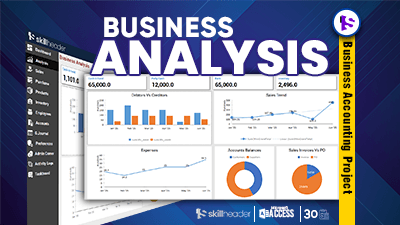
Create visual dashboards for at-a-glance business insights.
Dashboard Form Design
Build a main screen with built-in charts showing sales, costs, and account balances.
Query-Driven Real-Time Charts
Charts update automatically as new data comes in, using simple links to queries.
KPIs and Comparisons
Show key numbers like sales compared to expenses. This gives quick views to guide big decisions.
Video 31: Activity Logs and Audit Tracking

Implement detailed logging for compliance and oversight.
Log Database and Queries
Store all actions in logs and make easy searches by user, date, or type.
Report Generation for Audits
Create reports that sum up logs and export them for checks or reviews.
Retention and Archiving Policies
Automatically move or delete old logs to keep the system fast and tidy.
Video 32: Real-Time Activity Analysis

Monitor operations in real-time for proactive management.
Live Dashboard Refreshers
Add timers so activity screens update every few seconds automatically.
Anomaly Detection Alerts
Spot and warn about unusual things, like a very big transaction.
Trend Analytics
Find patterns over time, like busy periods, to plan better.
Video 33: Activate Secret Code to Reset Database 1

Conclude with maintenance tools, including resets and optimizations.
Reset Mechanisms and Codes
Use a secret code to safely clear the database for fresh tests or fixes.
Performance Tuning Techniques
Add indexes and clean up files to make everything run faster.
Extensions and Future Ideas
Get tips on connecting to other tools, like customer management (CRM) or full business systems (ERP).
Project Summary Table (Quick Reference)
| Video | Title | Key Topics | Best For Learning |
|---|---|---|---|
| 1 | Master Business Accounting Software in MS Access | Project vision, features, roadmap | Overall introduction |
| 2 | User Management and Event Log | Authentication, RBAC, logging | Security fundamentals |
| 3 | Chart of Accounts | Structure, forms, queries | Financial foundation |
| 4 | General Chart of Accounts Grouping and Management | Grouping, tools, integration | Advanced organization |
| 5 | Products and Store Management | Database, forms, queries | Inventory basics |
| 6 | Advanced Filter and Sorting in Forms | Filtering, sorting, optimization | Data navigation |
| 7 | Inventory and Stock Management | Transactions, alerts, reports | Stock control |
| 8 | Suppliers or Vendors Management | Database, forms, queries | Procurement |
| 9 | Customer Management | Profiles, navigation, validation | Sales relationships |
| 10 | Sales Order Management | Tables, forms, workflows | Order processing |
| 11 | Invoice Management with Order Items | Design, automation, printing | Billing |
| 12 | Order Shipping Process | Tracking, forms, integration | Fulfillment |
| 13 | Purchase Order PO Management | Workflow, events, queries | Buying basics |
| 14 | Auto Pricing Process | Rules, scripts, integration | Pricing automation |
| 15 | Complete PO Purchase Order Process | Stages, sync, trails | Full procurement |
| 16 | Progress Recap of the Evolution | Milestones, solutions, outlook | Review and motivation |
| 17 | Business Management Startup Level 1 | Wizard, config, testing | Initial setup |
| 18 | Chart of Accounts Startup Level 2 | Import, validation, customization | Data population |
| 19 | Accounts Opening Balances Level 3 | Entry, reconciliation, rollback | Historical data |
| 20 | General Journal Debit Credit Transactions | Entries, rules, posting | Bookkeeping core |
| 21 | Ledger and Financial Reporting | Maintenance, generation, customization | Ledger management |
| 22 | How to Apply Add-on for General Journal Ledger | Installation, config, testing | Extensions |
| 23 | Final Business Startup | Testing, deployment, backups | Going live |
| 24 | User Access Control | Controls, dashboard, practices | Permissions |
| 25 | Profit and Loss Statement | Queries, design, export | Financial reports |
| 26 | Business Task Board Management | Database, interfaces, reminders | Productivity tools |
| 27 | Advanced Functions of Task Board | Views, integrations, analytics | Task enhancements |
| 28 | Auto PO Process Smart Inventory | Triggers, queries, flows | Inventory automation |
| 29 | Advanced PO Automation Add-on | Modules, VBA, scalability | PO extensions |
| 30 | Business Analysis Dashboard | Design, charts, KPIs | Visual insights |
| 31 | Activity Logs and Audit Tracking | Database, reports, policies | Compliance |
| 32 | Real-Time Activity Analysis | Dashboards, alerts, trends | Monitoring |
| 33 | Activate Secret Code to Reset Database | Resets, tuning, extensions | Maintenance |
Final Thoughts – Is This Project Worth Your Time?
Absolutely. If you’ve ever wanted full control over your business finances without being locked into expensive software, this is your chance.
The teaching style is clear, patient, and practical perfect whether you’re new to Access or already have some experience. You won’t just watch; you’ll build along and end up with a powerful, professional accounting system you can actually use.
Pro Tip: Follow along with a blank Access database and pause to try each step. Many students finish with a working system they use in their real business.
Want the complete source code? It’s available through SkillHeader’s paid membership but the entire course is 100% free to watch and learn from.
Start today and take control of your business finances.
Updated December 10, 2025