
Advanced Filter and Sorting in your forms is essential because it turns a messy list of data into an organized and powerful tool. As your business grows, finding specific information by scrolling becomes impossible. Filtering narrows your view to exactly what you need like isolating “Electronics” or searching for a specific SKU while sorting arranges your list logically by name or price. These features save significant time, prevent costly invoicing mistakes, and ensure your software remains easy to use even as your database expands.
Explanation with timeline
Overview & UI Update: Introduction to the need for advanced navigation within data-heavy forms like the Product List.
Continuous Form Design: Setting up the Product List as a continuous form to allow for bulk viewing and interaction.
Sorting Method: Implementing logic to sort records alphabetically or by ID directly from the column headers.
“Search as you Type” Logic: Programming the search bar to filter records instantly with every keystroke using VBA.
Category Drop-Down Filter: Adding a combo box to filter items by their specific category (e.g., Electronics, Stationery).
“Show All” Functionality: Creating a reset button to clear all active filters and return the form to its default state.
UI Polishing: Final adjustments to the search controls and layout for a professional finish.
Detailed Step-by-Step Guide (Part 6: Search & Filter Logic)
In this instalment, we move beyond simple data entry and focus on data retrieval. A professional system must allow users to find specific products or groups of items instantly.
1. Designing the Search Interface
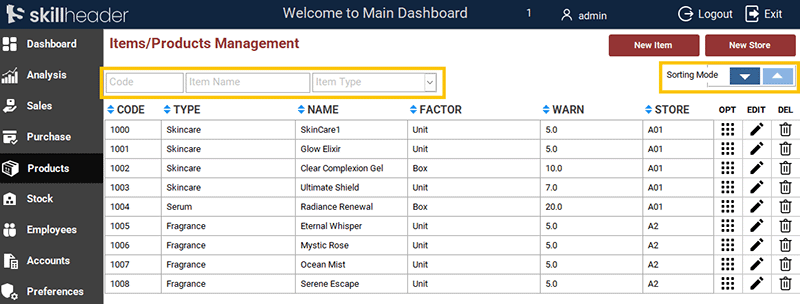
The filtering controls are placed in the Form Header of our continuous product list form. This ensures they remain visible even while the user scrolls through the records.
- Replacing Labels with Buttons: Buttons to trigger sorting of the columns.
- Options Frame: Containing buttons to switch sorting order
FrameItmSort. - Search Box for Product Code: An unbound Text Box named
txtFindItemCode - Search Box for Product Name: Search as you type the product name
txtFindItemNm - Category Filter: An unbound Combo Box named
txtFindItemType - Reset Button (Optional): A command button to clear all the filters and reset the form.
2. Sorting in a Continuous Form
Sorting helps in locating items quickly by grouping them logically.
Method: We use the labels in the form header as “buttons.”
VBA Event: On the Click event of the “Product Code” button: (Change the field name ItmCode for the next label)
Private Sub CmdItmCode_Click()
If Me.FrameItmSort = 1 Then
    DoCmd.SetOrderBy "ItmCode ASC"
Else
    DoCmd.SetOrderBy "ItmCode DESC"
End If
End Sub3. Implementing “Search as you Type”
Instead of clicking a “Find” button, the results update as the user types the product code or name.
- Event: The code is triggered by the
On Key Upevent of the text boxes. - Function: It searches across both the product code and name, allowing for flexible lookups.
3.1 Search as you Type the Product Code txtFindItemCode
Private Sub txtFindItemCode_KeyUp(KeyCode As Integer, Shift As Integer)
On Error GoTo errHandler

Dim filterText As String

'Apply or Update filter based on user input
If Len(txtFindItemCode.Text) > 0 Then
    filterText = txtFindItemCode.Text
    Me.Form.Filter = "[ItmCode] Like '*" & filterText & "*'"
    Me.FilterOn = True

    txtFindItemCode.Text = filterText
    txtFindItemCode.SelStart = Len(txtFindItemCode.Text)
Else
    Me.Filter = ""
    Me.FilterOn = False
    txtFindItemCode.SetFocus
End If

Exit Sub

errHandler:
    Me.Filter = ""
    Me.FilterOn = False
    txtFindItemCode.SetFocus
End Sub
3.2 Search as you Type the Product Name txtFindItemNm
Private Sub txtFindItemNm_KeyUp(KeyCode As Integer, Shift As Integer)
On Error GoTo errHandler

Dim filterText As String

'Apply or Update filter based on user input
If Len(txtFindItemNm.Text) > 0 Then
    filterText = txtFindItemNm.Text
    Me.Form.Filter = "[ItmNm] Like '*" & filterText & "*'"
    Me.FilterOn = True

    txtFindItemNm.Text = filterText
    txtFindItemNm.SelStart = Len(txtFindItemNm.Text)
Else
    Me.Filter = ""
    Me.FilterOn = False
    txtFindItemNm.SetFocus
End If

Exit Sub

errHandler:
    Me.Filter = ""
    Me.FilterOn = False
    txtFindItemNm.SetFocus

End Sub
4. The Category Drop-Down Filter
While the search box is for finding specific items, the drop-down is designed for broad group isolation. In this version, we use a Value List based Combo Box to give the user total control over the view.
- Setup: Change the Row Source Type to “Value List”.
- The
<All>Option: We include<All>as the first item in our list. This acts as a “reset” switch embedded directly in the selection. - VBA Logic: We use the
After Updateevent to check the user’s selection: - If the user selects
<All>, the code setsMe.FilterOn = False, showing every product in the database. - If any other category is selected, the code applies a filter to match that specific group.
Private Sub txtFindItemType_AfterUpdate()
If Me.txtFindItemType = "<All>" Then
    Me.Form.Filter = ""
    Me.FilterOn = False
    Me.txtFindItemType = Null
Else
Dim strFindType As String
    strFindType = "[ItmType] Like '" & Me.txtFindItemType & "'"
    Me.Form.Filter = strFindType
    Me.Form.FilterOn = True
End If
End Sub