Part 2 implements a professional User Management Interface and a crucial Event Logging System.
Explanation with timeline
1. Designing the Preferences Tab Control:
- A custom Tab Control is implemented within the Preferences navigation area.
- Tabs include User Management, Profile Management, and Business Startup.
- Styling is customized to make the tab control transparent and modern.
2. Building the User Management Interface:
- The User List Form (
UserManagement) is created as a Continuous Subform bound totbl_user. - Records on this display form are Disabled to prevent accidental changes.
- The Add User Form (
AddUser) is made an Unbound Form for strict validation. - Password Masking Toggle: VBA code is implemented on an icon button to toggle the visibility of the password field.
- Submit Validation: The Submit button checks for mandatory fields, password match, and minimum password length.
- Nested Subform Refresh: Complex VBA logic is used to refresh a subform nested inside the main dashboard’s navigation subform after submission.
- Edit User Form
(EditUser)is created as a Bound Form but excludes password fields.
3. Implementing the Event Log System:
- The
tbl_logs is created to recordUser_ID,Date_Time,Activity, andDetail. - New Public Variables for
(UserID)and(Username)are declared and updated during login. - A reusable Logging Function uses these public variables to record events (like login and new user creation).
Detailed Step-by-Step Guide
This part focuses on building a professional user interface for administration and implementing an indispensable auditing feature: the Event Logging System.
1. Designing the Preferences Tab Control
Step 1: Implementing and Styling the Tab Control
- In the Main Dashboard Form, a Tab Control is inserted under the Preferences navigation button.
- Tabs are added for User Management, Profile Management, and Business Startup.
- Styling: The tab control is customized by setting its background to Transparent, removing its outline, and applying Dim and Highlighted effects for a modern look.
2. Building the User Management Interface
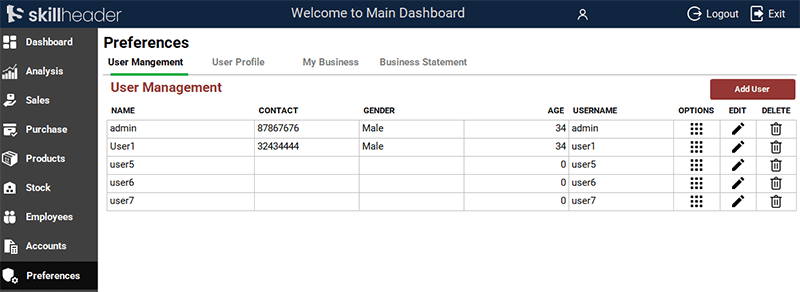
Step 2: Creating the User List Form (UserManagement)
- A new form (
UserManagementSub) is created as a Continuous Subform bound to thetbl_user. - The form’s records are explicitly Disabled to prevent accidental editing, making it a read-only list.
- This form is integrated as a Subform into the User Management tab.
Step 3: Refining the Add User Form (AddUser)
- Unbound Form: The form is converted to an Unbound Form for strict control over data before insertion.
- Password Toggle: VBA code is placed on an icon button’s
On Clickevent to toggle thePasswordCharproperty of the password text box between*(masked) and an empty string (unmasked). - Submit Button VBA Logic:
- Checks for empty mandatory fields.
- Verifies that the new passwords match.
- Enforces a minimum password length (e.g., 8 characters).
- Uses a RecordSet to insert the data into the
tbl_userif all validations pass.
- Auto-Update Logic: A complex VBA path (
Me.Parent.Parent.NavigationSubForm...Requery) is used to force the nested User List subform to refresh after a new user is submitted.
Private Sub cmdUserSubmit_Click()
If IsNull(Me.txtAccountName) = True Or IsNull(Me.txtProfile) = True Or IsNull(Me.txtAccountUsername) = True Or IsNull(Me.txtAccountPassword) = True Or IsNull(Me.txtAccountConfirmPassword) = True Then
    MsgBox "Please fill all fields.", vbExclamation, "|Empty Data|"
    Exit Sub
            'First check both Passwords matched
            ElseIf Me.txtAccountPassword <> Me.txtAccountConfirmPassword Then
                MsgBox "Passwords do not match.", vbCritical, "Password not match"
                Exit Sub
                    'Second check the 8 characters length
                        ElseIf Len(Me.txtAccountPassword) > 8 Then
                            MsgBox "Password character length must be 8 or less.", vbCritical, "Password length exceed"
                            Exit Sub
                                Else
                                    'Proceeding to enter data into User table
                                    'We will add Employee selection fields later on after Employee table from here
                                    Set adduser = CurrentDb.OpenRecordset("tbl_user", dbOpenDynaset, dbSeeChanges)
                                    With adduser
                                        .AddNew
                                        .Fields("uName") = Me.txtAccountName
                                        'Other fields will be added later on from the Employees table
                                        .Fields("prfID") = Me.txtProfile
                                        .Fields("uDate") = Date
                                        .Fields("uUsername") = Me.txtAccountUsername
                                        .Fields("uPassword") = Me.txtAccountPassword
                                        .Fields("uStatus") = "Active"
                                        .Update
                                    End With
                                    Set adduser = Nothing

                                    '///logs
                                    Set ulog = CurrentDb.OpenRecordset("tbl_logs", dbOpenDynaset, dbSeeChanges)
                                    With ulog
                                        .AddNew
                                        .Fields("logDate") = Date
                                        .Fields("logTime") = Now()
                                        .Fields("logActivity") = "Add User"
                                        .Fields("logDetail") = uN & " New User Added"
                                        .Fields("uID") = uI
                                        .Update
                                    End With
                                    Set ulog = Nothing

                                    'Close form after submission
                                    DoCmd.Close acForm, "AddUser", acSaveYes

                                    'Refresh the data of Main Dashboar form (This is complex and tricky)
                                    'So we need to refresh the Subform while UserManagement is the main Userform
                                    Forms!MainDashboard![NavigationSubform]!UserManagement!UserManagementSub.Form.Requery
                                    'Working fine greate

End If
End Sub
3. Implementing the Event Log System (Audit Trail)
Step 4: Creating the Event Log Table (tbl_logs)
| Field Name | Data Type | Purpose |
|---|---|---|
logID | AutoNumber (Primary Key) | Unique ID for the log entry. |
logDate | Date/Time | The date of the event occurred. |
logTime | Date/Time | The time of the event occurred. |
logActivity | Text | The type of action (e.g., ‘LOGIN’, ‘NEW USER’). |
logDetail | Text | A descriptive summary of the action. |
uID | Number (Foreign Key) | Links to the user who performed the action. |
Step 5: Public Variables for Global Identity Tracking
- Declaration: Public Variables (
Public uI As Integer,Public uN As String) are declared in a standard module. - Update at Login: The VBA code on the Login Form is updated to retrieve the user’s ID and Username upon successful login and populate these Global Variables.
Step 6: The Logging Function Logic
A simple, reusable logging function is created. This function accepts the Activity and Detail as arguments and uses the globally available User ID uI and Username uN to automatically populate the tbl_logs with the user’s identity and action details. This function is called immediately after a successful login and inside the submit code for creating a new user.
                      '///logs
                       Set ulog = CurrentDb.OpenRecordset("tbl_logs", dbOpenDynaset, dbSeeChanges)
                       With ulog
                          .AddNew
                           .Fields("logDate") = Date
                           .Fields("logTime") = Now()
                           .Fields("logActivity") = "Add User"
                           .Fields("logDetail") = uN & " New User Added"
                           .Fields("uID") = uI
                           .Update
                        End With
                        Set ulog = Nothing