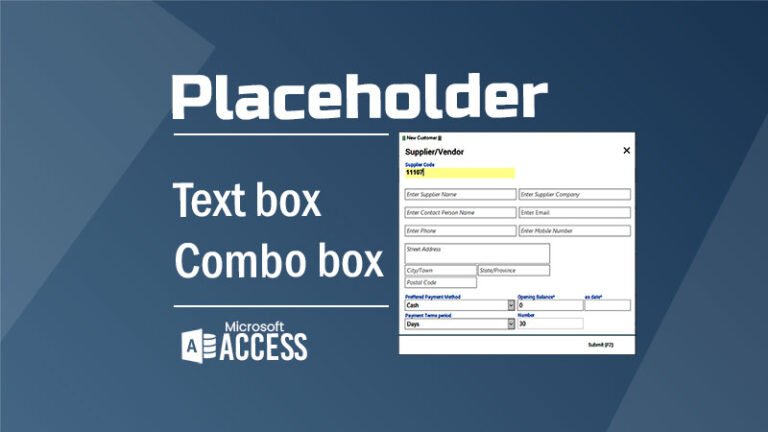
When building applications in Microsoft Access, the way you design your forms plays a big role in how users interact with data. Access offers different form control methods, such as Single Bound Forms, Continuous Bound Forms, and Unbound Form Controls—each with its own strengths and limitations. Bound forms are quick to set up and automatically save data, but this convenience can sometimes reduce control and lead to unwanted or incomplete records. In this article, we’ll look at all form control methods in MS Access and explain, in a simple and practical way, why unbound form controls offer better flexibility, give you more control over data entry, and create a smoother, more user-friendly experience.
Practical Process by Creating Table
Practically, we will create an Employee table that includes the fields listed below. For adding a new employee, a bound form can be used, which can be created through the Form Wizard by selecting the table and required fields.
| Field Name | Data Type | Purpose |
|---|---|---|
EmpID | AutoNumber (Primary Key) | Unique ID for the log entry. |
EmpStatus | Text | Status of the Employee either Active or Inactive |
EmpDepartment | Text | Department (e,g,. Manager, Operations, Lahor, Accounts) |
EmpJoinDate | Date/Time | Joining date of the employee |
EmpFirstNam | Text | First Name of the Employee |
EmpLastName | Text | Last Name of the Employee |
EmpGender | Text | Employee Gender (Male, Female) |
EmpAge | Number | Age of the Employee in Number of Years |
EmpContact | Text | Contact Number |
EmpAddress | Text | Address of the Employee |
EmpDutyHouts | Number | Duty Hours as per JD |
EmpBasicSalary | Currency | Basic or sometimes called fixed salary |
EmpAllowance | Currency | Allowances other than the basic salary |
EmpTotalSalary | Calculated | Total calculated salary = Basic + Allowance |
Bound Form Controls — What They Are
A bound form control is a form element such as a text box, combo box, or checkbox that is directly connected to a field in a table or query. Because of this connection, the control automatically displays data when the form opens, and any changes made by the user are saved back to the database without needing extra code. The form itself relies on a record source, which is usually a table or query, to determine what data is loaded and shown in the form.
Types of Bound Form Views
Bound forms can show data in different layouts:
1) Single Bound Form Control
- Shows one record at a time.
- Each control (textbox, combo box, etc.) represents a field in that single record.
- Typical for record-by-record data entry or editing.
Characteristics
- Displays only one record at a time.
- Great when users need to focus on editing one item.

Pros
- Easy to build — drag fields from Field List and Access handles data sync.
- Automatic data saving — data changes are written back to the database automatically.
- Minimal code — no programming required for basic CRUD.
Cons
- Users can only see one record at a time, which might slow down tasks where you compare records.
- Editing logic (like validation before save) may require extra events/code if you don’t want automatic saving.
2) Continuous Bound Form Control
A Continuous Bound Form displays multiple records in a list-like way:
- The form’s Default View property is set to Continuous Forms.
- Controls are bound (just like single form), but they show many records at once in a repetitive layout.
This method is similar to a single employee addition bound form; the only difference is the form properties, which will be set to Continuous so that a list of records can be displayed.

Characteristics
- Looks like a subform or datasheet but keeps custom formatting.
- Each row repeats the bound controls for each record.
Pros
- Users can scan multiple records at once.
- Still benefits from automatic data binding and CRUD operations.
- Good for lists, search results, or admin panels.
2. Unbound Form Controls — What They Are
An unbound control is not tied directly to any field in a table or query. It may be used for labels, calculated values, navigation (buttons), or controls that are filled and saved using code.
An unbound form has no Record Source, meaning:
- Nothing is automatically loaded from tables into the form.
- You fill controls with data using code usually from the Submit Button Onclick event code.
- You save data using code (e.g., SQL INSERT/UPDATE via VBA).

In the unbound form control process for adding a new employee, we will create a new form that is not linked to any table.
Private Sub Command27_Click()
'This is unbound form and unbound textboxes code
'First of all, we will check the empty mandatory textboxes and return a msg

If IsNull(Me.txtempStatus) = True Or IsNull(Me.txtempDepartment) = True Or IsNull(Me.txtempJoinDate) = True Or _
IsNull(Me.txtempFirstName) = True Or IsNull(Me.txtempDutyHours) = True Or IsNull(Me.txtempBasicSalary) = True Then

    MsgBox "Please fill mandatory fields first.", vbExclamation, "Empty Fields"
    Exit Sub
        Else
           Set rstNE = CurrentDb.OpenRecordset("tbl_employee", dbOpenDynaset, dbSeeChanges)
           With rstNE
            .AddNew
            .Fields("empstatus") = Me.txtempStatus
            .Fields("empDepartment") = Me.txtempDepartment
            .Fields("empJoinDate") = Me.txtempJoinDate
            .Fields("empFirstName") = Me.txtempFirstName
            .Fields("empLastName") = Me.txtempLastName
            .Fields("empGender") = Me.txtempGender
            .Fields("empAge") = Me.txtempAge
            .Fields("empContact") = Me.txtempContact
            .Fields("empAddress") = Me.txtempAddress
            .Fields("empDutyHours") = Me.txtempDutyHours
            .Fields("empBasicSalary") = Me.txtempBasicSalary
            .Fields("empAllowance") = Me.txtempAllowance
        'Total Salary field is Auto Calculated field from the table, so need to update from unbound text box
            .Update
        End With
        Set rstNE = Nothing
        DoCmd.Close acForm, "frm_employeeU"
End If
End SubUnbound Single Form
- Form has no record source.
- Controls are independently filled based on logic (e.g., via combo lookup, buttons).
- Good for search forms, dashboards, custom entry forms requiring strict control.
Pros
- Total flexibility over when/how data is displayed.
- You control exactly when saving occurs (e.g., only when user clicks Submit).
- Avoids accidental saves or half-filled records.
3. Summary: Pros & Cons at a Glance
| Method | Primary Use | Pros | Cons |
|---|---|---|---|
| Single Bound Form | Record-by-record editing | Easy to build, auto save | Limited view, implicit saves |
| Continuous Bound Form | Multi-record display | Fast scanning, bound features | Harder formatting & custom logic |
| Unbound Form | Custom interfaces | Full control, custom save | More coding, manual processes |
4. Why I Prefer Unbound Form Controls
Here are common reasons (which you can tailor to your own screenshots and video references):
Control Over Data Entry
The great thing about unbound forms is that nothing is set in stone until you hit ‘Submit.’ It works exactly how most of us expect a website to behave, you fill everything out, check it over, and then click save. This approach makes for a much smoother user experience because it prevents those ‘oops’ moments where half-finished info or accidental typos get saved to the database automatically.
More Predictable Navigation
Instead of Access automatically moving between records or inadvertently saving partial changes when the user tabs out or closes the form, the unbound approach gives exact control over navigation, saving, and validation.
Greater Validation Flexibility
You can validate all fields together before committing anything. For example:
- Required fields
- Cross-field logic
- Business rules
Custom Workflows
Unbound forms allow complex workflows such as:
- Multi-step entry
- Wizard-style processes
- Bulk updates
- Audit & logging control
This level of control often outweighs the extra coding effort—especially in applications where data accuracy and UX matter.