
This masterclass is designed to make you proficient in both accounting terminologies and MS Access programming (including tables, queries, forms, reports, and essential VBA coding and modules).
Explanation with timeline
The completed system features a comprehensive suite of tools to run a modern business:
- Financial Accounting: Chart of Accounts Management, General Journal Bookkeeping, General Ledger Entry, and Profit and Loss Statement Generation.
- Operations & Inventory: Products and Stock Management, Customer Invoicing, and Supplier PO Management.
- Security & Administration: Multi-User Login System with Profiling, Admin monitoring through Auto Logs, and comprehensive Task Management.
- Human Resources: HR handling system, including employees salaries and allowances.
Deep Dive: The Multi-User Security Framework The framework focuses on robust security:
- Form Creation: Designing the Main Dashboard form with vertical navigation, Login, and Add User forms.
- Database Tables: Creating the User Table (
tbl_user) withUsername,Password, andStatus, and the Profile Table (tbl_profile) containing fields for every navigation button (e.g.,Sales,Accounts). - Relationship & Logic: A relationship is established between
tbl_userandtbl_profileProfile_IDupon successful login, which is then used to dynamically enable or disable the corresponding navigation buttons on the dashboard.
Detailed Step-by-Step Guide
This first part of the masterclass focuses on building the foundational structure of our accounting solution: a robust, multi-user login system and a dynamic main dashboard using Microsoft Access VBA programming.
1. Project Overview & Foundation
The goal of this comprehensive project is to build a complete business solution—from ledger entries and stock management to payroll—while simultaneously mastering advanced MS Access features like VBA coding, Tables, Queries, Forms, and Reports. This initial setup is critical as it implements the comprehensive multi-user login and profiling system, which controls who can access what features across the entire database.
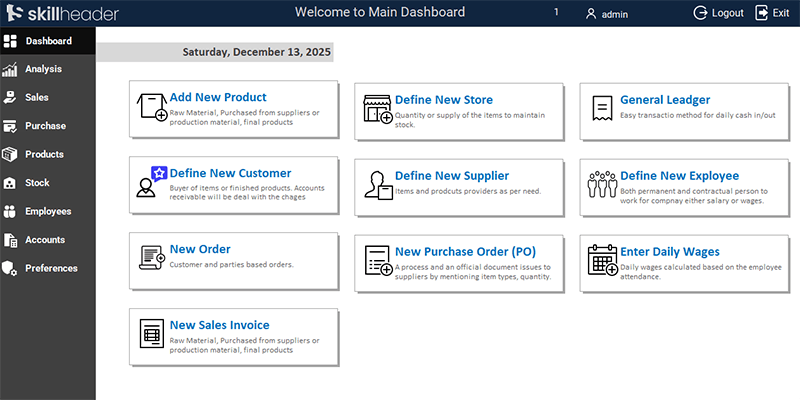
2. Building the Main Dashboard Form (MainDashboard)
The main dashboard is the navigation hub of the entire application and must be designed for both usability and dynamic control.
2.1. Dashboard Design and Navigation
- Initial Setup: Start a new blank database and create a new Form (e.g.,
MainDashbaord). - Vertical Navigation: From the Form Design menu, insert the Navigation Control. The video emphasizes immediately changing the control’s properties to use a Vertical Aligned Navigation tab style, which is more common in modern desktop applications.
- Adding Modules: The main sections of the system are added as tabs in this control. The sections include: Dashboard, Analysis, Sales, Purchase, Products, Stock, Employees, Accounts, and Preferences.
- Aesthetic Details: The form is given a professional look by adding a logo, applying a clean, single-color background, and ensuring proper alignment.
- Iconography: The video shows how to integrate customized icons for each navigation button.
- User Header and Exit: A label is added to the header section to display the current User Account Name. Finally, dedicated Logout and Exit buttons are created.
3. Database Structure: Users and Profiles
The access rights are managed through a relationship between two crucial tables.
3.1. The User Table (tbl_user
tbl_user| Field Name | Data Type | Purpose |
|---|---|---|
uID | AutoNumber (Primary Key) | Unique identifier for each user. |
prfID | Number | Crucial: Links the user to a specific profile in the tbl_profile. |
uName | Text | Username |
uPhone | Text | Phone Number (Optional) |
uDate | Date/Time | Date of user creation (Optional) |
uGender | Text | Gender of the user (Optional) |
uAge | Number | Age of the user (Optional) |
uUsername | Text | The login identifier. |
uPassword | Text | The login credential. |
uStatus | Text | To enable or disable an account (e.g., Active/Disabled). |
3.2. The Profile Table (tbl_profile
tbl_profileA dedicated field for each dashboard button (e.g., Sales, Accounts). -1 is set for Enabled (True), and 0 for Disabled (False).
| Field Name | Data Type | Purpose |
|---|---|---|
prfID | AutoNumber (Primary Key) | Unique identifier for each profile. |
prfName | Text | The profile name (e.g., ‘Admin’, ‘Sales Team’). |
prfDashboard | Number | A dedicated field to enable of disable the Dashboard Navigation |
prfAnalysis | Number | A dedicated field to enable of disable the Analysis Navigation |
prfSales | Number | A dedicated field to enable of disable the Sales Navigation |
prfPurchase | Number | A dedicated field to enable of disable the Purchase Navigation |
prfProducts | Number | A dedicated field to enable of disable the Products Navigation |
prfStock | Number | A dedicated field to enable of disable the Stock Navigation |
prfEmployees | Number | A dedicated field to enable of disable the Employees Navigation |
prfAccounts | Number | A dedicated field to enable of disable the Accounts Navigation |
prfPreferences | Number | A dedicated field to enable of disable the Preferences Navigation |
4. Establishing the Login and Add User Forms
4.1. The Login Form (LoginForm)
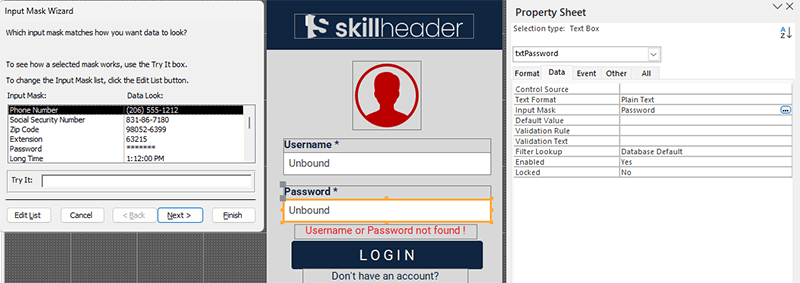
- Password Masking: A simple VBA line is applied to the Password text box’s property to ensure the input is hidden by asterisks for security.
- Sign-up/New Account Link: A button is included to open the Add New User form.
4.2. The Add New User Form (AddUser)
- Profile Selection: A Combo Box is used to display the
tbl_profileProfile_IDfield in thetbl_user

5. VBA Code Logic: Multi-User Level Processing
This is the most critical part, controlling the security and dynamic user interface.
5.1. Login Button VBA Logic
The code behind the Login button executes three primary tasks:
- Input Validation: Checks if the Username and Password fields are empty.
- Credential & Status Check: Performs a database lookup on the
tbl_userUsername,Password, AND theStatusare correct/active. - Successful Login & Profile Retrieval: If successful, the code retrieves the
Profile_IDand stores it.
Private Sub cmdLogin_Click()
'First check the null textboxes and return a msg
If IsNull(Me.txtUsername) = True Or IsNull(Me.txtPassword) = True Then
    MsgBox "Please enter Username and Password...", vbExclamation, "|Username or Password Blank|"
    Exit Sub
        Else
            'Find the record in user table based on both username and password
            ufound = DCount("uUsername", "tbl_user", "uUsername = '" & Me.txtUsername _
            & "' and uPassword = '" & Me.txtPassword & "' and uStatus = 'Active'")

            'Record not found
            If ufound = 0 Then
                Me.LblNotFound.Visible = True
                Exit Sub
                    'Record found
                    Else
                        'user ID (It must be defined as Public Variable)
                        uI = DLookup("uID", "tbl_user", "uUsername= '" & Me.txtUsername & "'")
                        uN = Me.txtUsername
                        '///logs
                        Set ulog = CurrentDb.OpenRecordset("tbl_logs", dbOpenDynaset, dbSeeChanges)
                        With ulog
                            .AddNew
                            .Fields("logDate") = Date
                            .Fields("logTime") = Now()
                            .Fields("logActivity") = "Logged in"
                            .Fields("logDetail") = Me.txtUsername & " logged in"
                            .Fields("uID") = uI
                            .Update
                        End With
                        Set ulog = Nothing

                         'Active prodile ID (Which declared as public variable)
                        aprofile = DLookup("prfID", "tbl_user", "uUsername = '" & Me.txtUsername & "'")
                        'Open Main Dashboard form
                        DoCmd.OpenForm "MainDashboard"
                        'Update the Username textbox in the Main form
                        Forms!MainDashboard.txtActiveUser.Value = Me.txtUsername


                        'Update the profile ID in the main form
                        Forms!MainDashboard.txtActiveProfile.Value = aprofile

                        'Close the login form
                        DoCmd.Close acForm, "LoginForm"
            End If
End If
End Sub
5.2. User Level Processing & Dynamic Navigation
- Public Variable Declaration: A Public Variable (
aprofile) is declared in a standard module, making the logged-in user’s profile ID globally accessible. - The Dashboard
On LoadEvent: The code within theMainDashboard‘sOn Loadevent uses theaprofileID to look up the corresponding record in thetbl_profile
